Saving voicemail messages to your Mac
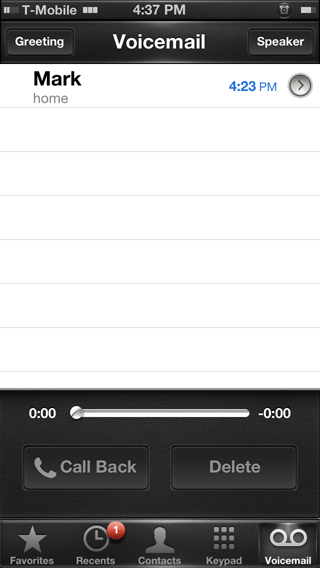
Posted: April 27, 2013I never thought I'd see the day when I would have visual voicemail working on my iPhone on the T-Mobile network. I'm prepaid (which means I can't purchase a data plan on my iPhone, however visual voicemail does work. One of the neat things about visual voicemail is that the messages are pushed to the iPhone and stored on it. So I'm going to show you how to save your messages to your Mac.
Attention
I will be using YummyFTP to upload the files in this tutorial. These instructions can be applied to any files you want to add to your iPhone, provided you already have SSH installed. If you have not installed SSH, or used YummyFTP before, then you must read this tutorial first.Step 1.
Navigate to the /private/var/mobile/Library/Voicemail folder. You'll see .amr files here, those are your voicemail messages. You can either just drag a file off to your dekstop, or transfer it within the program.
Step 2.
You'll now have a QuickTime file on your desktop.
Click play, and there you have it.

