Using the exxOS theme
March 4, 2013Page 2 of 2
Step 7. Home screen widget configuration
Let's take a look at that widget on the home screen now. Here's my home page with the photo widget running. This is the default image and the only image. There is an animated widget you can use here. Go to Cydia and install exxOS Widget Animated. You'll need to enable it in WinterBoard.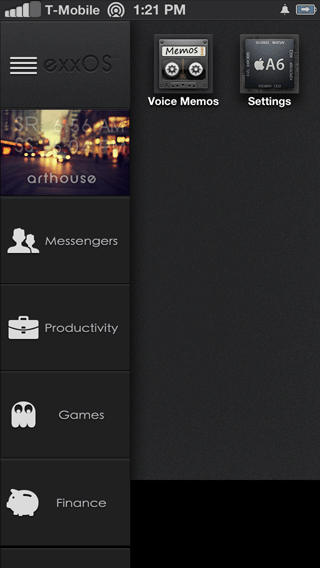
Back to the default photo widget now. You can either just copy the Config.js file you edited in the previous step and place it here or edit the Config.js file at /Library/Themes/exxOS Widget.theme/Setup/Config.js If you skipped step 6 then review it to learn how to configure this widget.
To change the text that says arthouse go to /Library/Themes/exxOS Widget.theme/Widget.html and either edit it with iFile on the iPhone or download it to your computer. You can also try to change any of the text that appears here or reconfigure what displays in the widget. Don't be afraid to experiment. Keep backups!

You can also change the photo that appears in this widget. Make sure yours is 262 x 176. It's best if it's a mid range to darker photo or you won't be able to read any of the text that is superimposed on it.
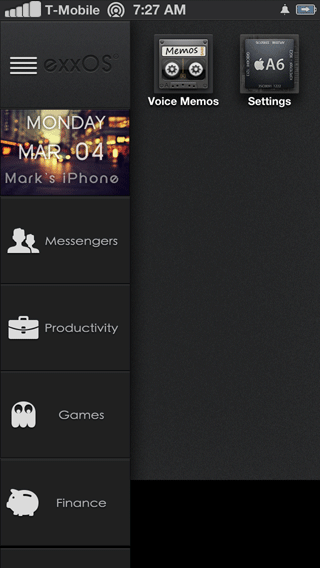
Name this photo YourPicture.png (even if your photo is in jpg format). Then place it at /Library/Themes/exxOS Widget.theme/ You may want to rename the defaul photo just in case you want to keep it. Here's what mine looks like with my own custom text.
SBSettings theming
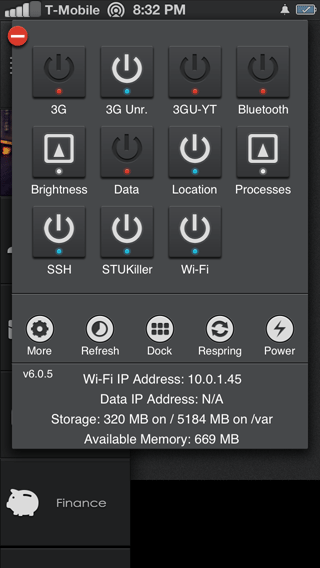
If you use SBSettings you may want a nice matching theme. Lucky for you this theme comes with one and it looks good. Here's the before and after. To enable press More, Dropdown Window Theme then select exxOS theme.
Alternate lock screen
I want a cool lock screen theme. Nothing is more important than the lock screen to me. I've used Lock Info in the past but there are things about it I don't like so I'm going to try out the lock screen from the exxOS thread. It's called the Optional GPS Lockscreen Weather (by Yamakasi73 and friends). You can download it here. I am not hosting this file, so if it's not there any more than ask in the thread linked to from above.Next use SSH or whatever program you'd like that can see the iPhone file system (DiskAid, etc) and upload this theme to the iPhone in /Library/Themes/

Next install Lockscreen Clock Hide. Then launch Settings and go to Clock Hide. Enable it and set your other preferences.


Launch WinterBoard and enable the theme. Hey look at that. Much nicer I think. If you press the weather icon a forecast will appear. Press again and presto it disappears.
The downside to this is you lose your large charging battery icon. You'll also notice that we need to configure the weather to display the correct information.
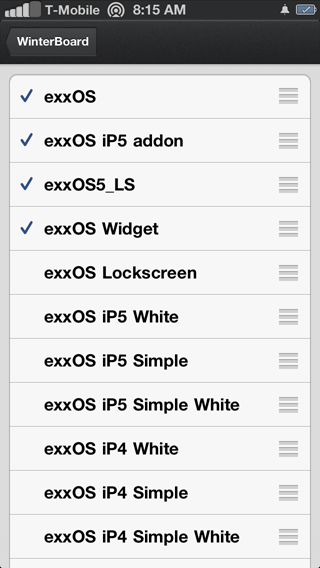

Go to /Library/Themes/exxOS5_LS.theme/script/setup.js and edit the file on the iPhone with iFile or download it to your computer to edit it. Below are my changes. Once again you'll have to change your var locale variable using the http://weather.yahoo.com page.

Here it is with my changes.

What I didn't cover...
If you haven't yet read the original thread over at ModMyi about this theme then you really should. It's right here.There is a FAQ at the end of post 1 and a list of known issues for iPhone 5 and iOS 6.
I covered the major items for this theme and detailed configuration settings but here are some things I wasn't interested in personally.
- Page Indicators. Download them here.
- Alternative badges for mail, Twitter, etc. Download them here.
- PSD files for creating new icons and other graphics for the theme. Download them here.
- Color keyboards. I tried these but they don't seem to be designed to work on iPhone 5 or iOS 6 or WinterBoard just doesn't know how to handle theme.
- Theme without the left side navigation bar and vertical scrolling.
- Animated home screen widget
- White Mod
