Creating a Cydia repository - Adding a theme package
Page 2 of 2Step 6.
Launch the MD5 program and click the Single Files button. Drag your .deb file into the Choose file field of the program. The path to this file will be automatically entered for you.
Click the Calculate checksum button. Keep this program open, we will be coming back to copy the checksum value into the Packages file.

Step 7.
Go to your cydiarepo folder and open your Packages file.
Open the Packages file and duplicate the text that's already there as a template for your new package.
My file looked like this when I was done editing it. Don't forget to save this file.

Step 8.
Go back to the Terminal and enter the following:cd cydiarepo
Press enter.
Then enter this line:
gzip -f Packages
Press enter.
Note: every time you modify the Packages file, you have to make a new Packages.gz file.

Step 9.
You can delete the file Packages~ (if it appears). Double click the Packages.gz file to extract the new Packages file.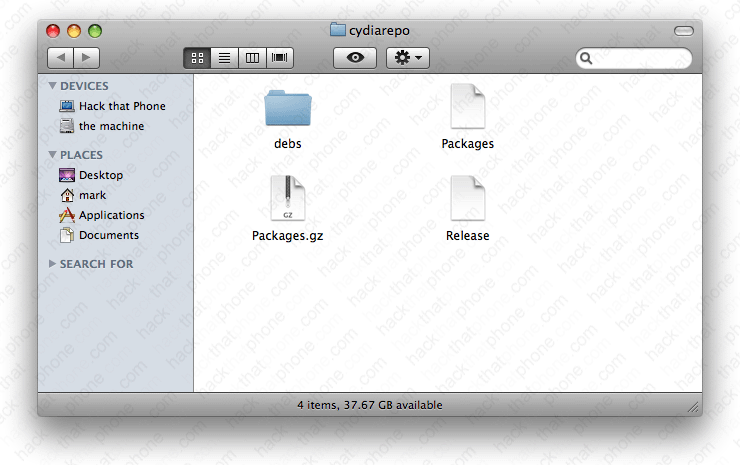
Whenever you update your .deb file, or add a new one to your repository, you have to update the Packages file, and then gzip that file.
Step 10.
Drag your cydiarepo folder into the DS_Store_Cleaner program.
A message will appear confirming the deletion of the hidden .DS_Store files. Anytime you change the contents of your folders, these files are added. It is critical they be removed before uploading your files to your website for distribution.

Step 11.
Copy your cydia folder over to your website's public_html folder.
Step 12.
Launch Cydia, and install your new package.

Launch WinterBoard and press the Select Themes button. Select the theme.


Here's what it looks like. Note I changed the folder backgrounds too.


For other exmpales of how to package various graphics and audio files, see my WinterBoard tutorials here.
