Downgrade iPhone 3G 4.0 firmware to 3.1.3 firmware
Page 1 of 2I made this tutorial specifically for people who want to downgrade because they discovered running 4.x firmware makes their iPhone 3G run sluggish. In this tutorial I start out running 4.0 firmware and the new 5.13.04 modem firmware. I hate it, the iPhone is now pretty slow, even when not enabling multitasking. Let's downgrade back to 3.1.3 firmware and pick up some speed.


Step 1.
Download 3.1.3 firmware here: http://appldnld.apple.com.edgesuite.net/content.info.apple.com/iPhone/061-7468.20100202.pbnrt/iPhone1,2_3.1.3_7E18_Restore.ipswDownload 3.1.2 firmware here: http://appldnld.apple.com.edgesuite.net/content.info.apple.com/iPhone/061-7265.20091008.Xsd32/iPhone1,2_3.1.2_7D11_Restore.ipsw
3.1.2 firmware must be downloaded, even to downgrade to 3.1.3 firmware as the redsn0w program was never properly updated to recognize 3.1.3 firmware.
Download redsn0w 0.9.4 from the iPhone Dev Team here. Update: The team has removed this version from their site. You can try the latest beta of redsn0w 0.9.7b6, it should work fine. You can download that from the team here.
You should now have these three files on your computer.

Double click the redsn0w-mac_0.9.4.zip file and you will see this folder appear.
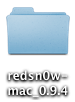
Go into this folder and drag the redsn0w.app file into your Applications folder.

Step 2.
Connect your iPhone to your Mac via the USB cable. Turn the iPhone off. Hold the Power (sleep/wake) button and the Home buttons for 10 seconds. Then release the Power button, but continue holding the Home button for 10 seconds. Launch iTunes (if it doesn't automatically) and you will receive a pop up message about being in recovery mode. Your iPhone is actually in DFU mode (there just isn't a DFU mode pop up message). You know you are in DFU mode when the screen is black, but the iPhone is on. If you have trouble with this, use PwnageTool to walk you through how to get into DFU mode.
Hold the Option key on your Mac and click the Restore button in iTunes.

Navigate to the 3.1.3 firmware you downloaded. Select it and click Choose.
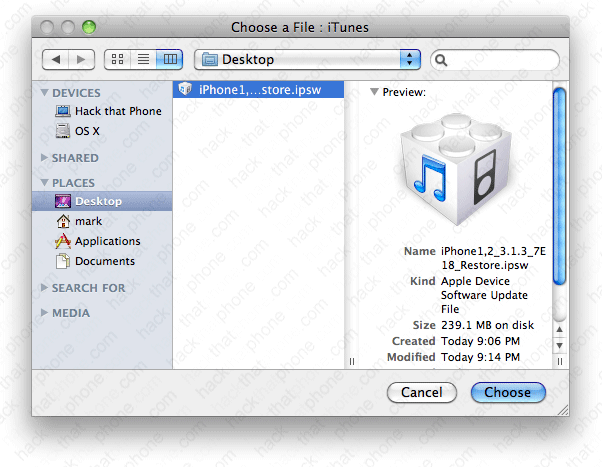
Various messages will appear during the restore process.

The iPhone's screen will turn white, and then the Apple logo with a restore status bar will appear.

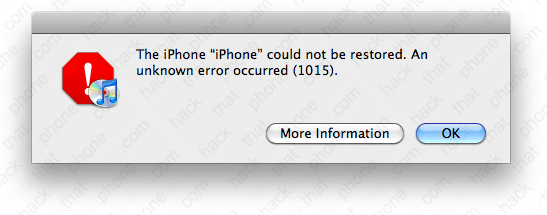
You'll receive an error message when the restore has completed. The reason for this error is because your OS firmware version (3.1.3) doesn't match your modem firmware version (5.13.04). The modem firmware doesn't downgrade when you go backwards in OS firmware.
The iPhone will display the plug into iTunes graphic as it is now in recovery mode.

You will also receive this pop up message from iTunes. Click OK.
Step 3.
Download TinyUmbrella for the Mac here. Next double click the .dmg file that was saved to your computer. Note: this program is updated frequently, your version number may differ. I am hosting the exact same version I am writing about as I don't have the time to update this tutorial on a daily basis. You can download version 4.01.03 from me here.
It is important that you drag the program icon into your Mac's Applications folder.
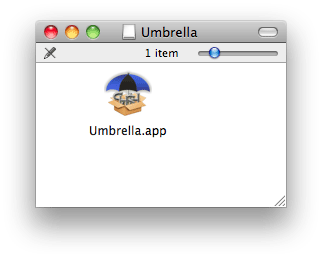

Launch the program. Enter your system password. Click OK.

Launch TinyUmbrella. Click the Kick Device Out Of Recovery button. Close the program.

Your iPhone should now be at the activation screen.

