Jailbreaking the iPhone 3G/3G S with the Jailbreakme.com website
Updated: August 13, 2010Who is this guide for?
- iPhone 3G or 3G S owners on 3.1.2, 3.1.3, 4.0, or 4.0.1 firmware.
- iPhone must be activated. I used a Cingular SIM to do it in my 3G and 3G S.
You can read the iPhone Dev Team's post on this jailbreak here. You can also ask questions there and get help.
For this tutorial I took my PwnageTool jailbroken iPhone 3G, restored it to stock 4.0.1 firmware, and used a Cingular SIM (no it's not active), to activate the iPhone with.
Step 1.
Plug your iPhone into iTunes and sync. I'd hate to see you lose any photos, programs that you purchased on the phone, et cetera just in case. I used iTunes version 9.2. I was also able to sync with another Mac running iTunes 9.2.1 (5).Here is my screenshot after a fresh install of 4.0.1. Since I have a Cingular SIM installed I have no phone number displayed. You might also want to turn Airplane Mode on. If you happen to receive a phone call or text message during this process it might cause problems.

Step 2.
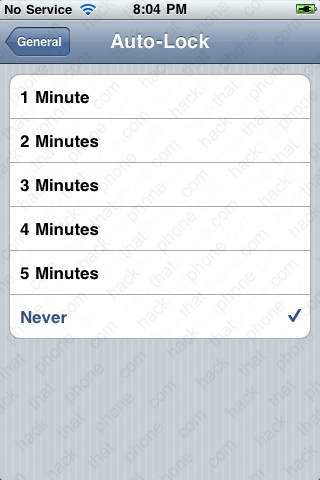
Launch the Settings application. Press General. Press Auto-Lock.

Press Never. Don't forget to change this back later! Launch Safari and go to jailbreaks.me. Press the More Info link if you'd like. When you are ready, slide to jailbreak. It will then download the jailbreak exploit. Depending on network congestion it may take awhile. It only took about a minute for me.
Many have reported a problem where they can't get the process to initiate. The solution seems to be clearing the cookies on the iPhone. To do this:
- Launch Settings and turn Airplane Mode on.
- Scroll down to Safari. Accept Cookies set to From visited.
- Double tap the home button quickly. The multi task switcher should have opened.
- Press and hold an icon until they start shaking. Find the Safari icon and press the red circle with a slash through it. This will close Safari.
- Go back to Settings, Safari then press Clear Cookies and press Clear Cache.
- Launch Safari and go back to jailbreakme.com.

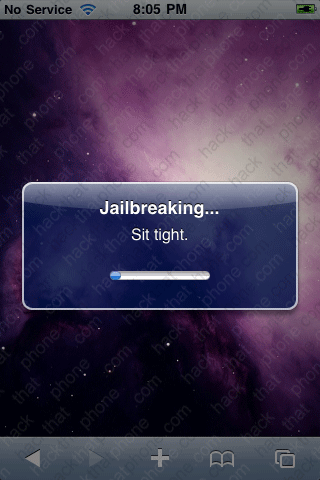
It will then take about 5 minutes to perform the jailbreak on a 3G and 2 minutes on a 3G S. Don't do anything with the iPhone until it has finished.

When you receive the Cydia has been added to the home screen message press OK. Then press the home button and you'll see Cydia on your springboard. You are now jailbroken!


Step 3.
Let's unlock the iPhone now. Switch out your SIM card (unless you already did).
Launch the Settings application. Press General then press Network. Make sure Enable 3G is set to off.


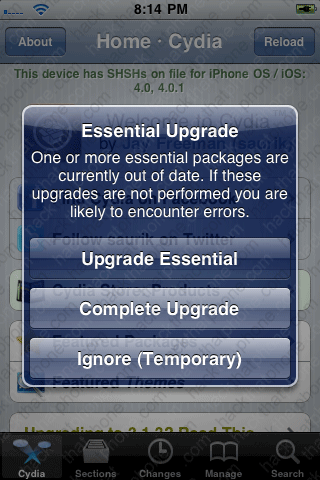
Launch Cydia. Make your selection at this screen. Perform any needed upgrades.

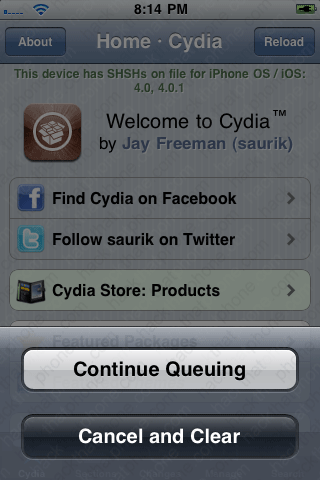
Press the Cancel / Queue button. Press Continue queuing.

If this is the first time your iPhone has been jailbroken and Cydia launched, you will instead be
greeted with this message. You want to press the button that says Make my life easier, thanks! This
will enable Cydia to store your SHSH for your iPhone so that you can continue to restore to this
firmware even when Apple won't sign the firmware any more.


|
|
|
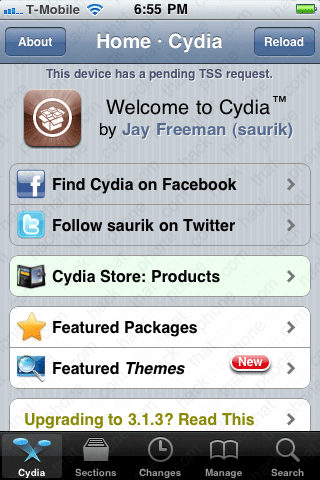
The next time you launch Cydia you'll see the message: This device has a pending TSS request. Cydia will eventually send your ECID to Apple and then capture the signature file that Apple sends to approve the restore. When it has this file captured it will state that you have an SHSHon file for that particular firmware. Because it could take Cydia some time (I've seen it take weeks) to capture this file and report it as captured, you need to read and follow my TinyUmbrella tutorial here, to get this file directly from Apple immediately. |
|
Press the Search button in the lower right corner, then enter ultrasn0w in the search box. Then press it. Press Install. Note: If you can not find ultrasn0w (most likely because the source repository was not cached due to some Cydia error), then read Step 3a below.
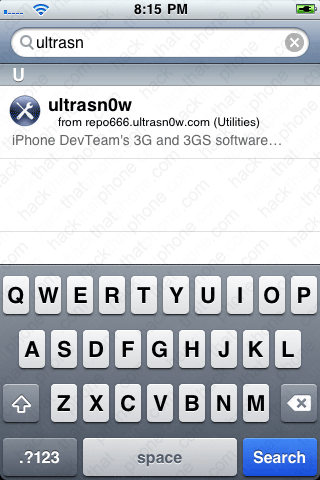

Press Confirm. Press Reboot Device.


Note: When rebooting, it's normal to see some artifacts at the top of the screen when the Apple logo is showing. PlanetBeing has said, "The glitches on the boot screen are normal. You're looking at the kernel shellcode jailbreakme uses (temporarily stored on the framebuffer)."
After the reboot you should see your new carrier's name.


You may want to launch Settings and check your Carrier menu. I hear it is better to select the carrier name you want to use versus leaving it in Automatic.


Here's my about screen showing 4.0.1 firmware and 5.13.04 modem firmware. Note: I always erase my serial number, Wi-Fi address, Bluetooth address, IMEI and ICCID. Your screen will have values here.


At this point everything should work as before on your iPhone. Note in iTunes that your "other" has increased in size. This is due to the jailbreak process.

Step 3a.
You are at this step because the ultrasn0w repository is not being loaded by Cydia for some reason. This is usually temporary. If you absolutely can not wait, then perform this step to get ultrasn0w installed.If you don't already know how to use SSH, then you must read this tutorial first.
Download ultrasn0w 1.1-1 from me here. You should now have this file on your desktop.

Launch YummyFTP and navigate to your iPhone's /tmp folder. Place the ultrasn0w file you downloaded into this folder.

On your Mac, go to your Applications folder, then go to your Utilities folder and launch the Terminal.app. Enter the following command after you have logged into the iPhone.
dpkg -i /tmp/ultrasn0w_1.1-1_iphoneos-arm.deb
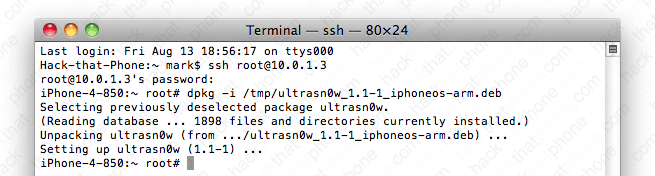
After about a minute your carrier name should appear and you should have a signal. If not, then reboot the iPhone.
If you launch Cydia and press Manage, then Packages you will see the ultrasn0w program in the list. You can of course remove the application through Cydia, and if there are any updates Cydia will alert you to this.
Step 4.
Would you like to prevent the exploit that is being used by the jailbreakme.com site now that you are jailbroken? There is a program in Cydia called PDF Patch. When installed it will prevent a malicious PDF from gaining access to your iPhone. After installing it, you can test it by going back to the jailbreakme.com website. When you slide to jailbreak nothing will happen and you will only see the space picture.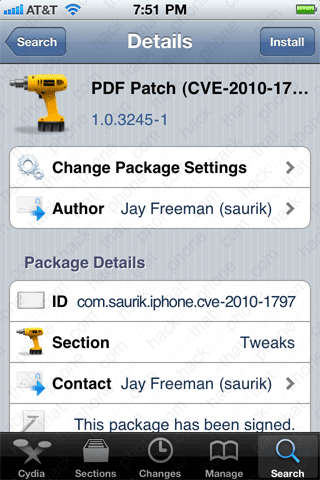

Restoring the iPhone back to stock configuration
If you want to remove all evidence of the jailbreak and the unlock, then simply restore your iPhone using iTunes. Keep in mind clicking update or restore may put you on newer firmware that can not be jailbroken or unlocked. You will also need an official SIM to activate the iPhone again. In my example below clicking either button will put 4.0.2 firmware onto my 4.0.1 iPhone. Think about what you are doing before you do it.
Updating your iPhone to newer firmware
Once a new firmware has been released it takes time to craft a new jailbreak and a new unlock, or a work around for the unlock. Do not update your jailbroken/unlocked iPhone if you value its current state of operation. I will post a tutorial on how to get newer firmware installed when it is possible.You updated anyway and want to go back
If you updated your iPhone and now realize your mistake and want to go back, you will be able to jailbreak provided your saved your SHSH. Read this tutorial to learn more. If you do have the SHSH for the firmware you want to go back to then read this page to see how I downgraded my iPhone 3G and 3G S.Keep in mind, if the new firmware you installed on your iPhone also came with new modem firmware, then you have lost your ability to unlock, possibly forever.
