Creating a Cydia repository & adding your first package
Updated: August 10, 2010Page 1 of 3
Cydia is a third party distribution system for installing programs onto jailbroken iPhones. It is similar to Apple's own App Store, except the overwhelming majority of programs on it are free. This tutorial will show you how to create your own repository (or repo) and package your own applications, graphics, and audio files for distribution. Someone would simply have to enter the URL to your repository, and they would have access to any files or programs you put into it.
This tutorial would not have been possible had I not stumbled onto a tutorial over at ModMyi.com here. All I did was change the way some things were performed in that tutorial. So a big thank you goes out to "itouchr".
Saurik (the creator of Cydia), has a tutorial on how to create a Cydia repository. It is meant for programmers as it assumes working knowledge of Debian and package management. That article is here.
This tutorial is a two part tutorial.
Section 1: Creating a Cydia repository & adding your first package (continue reading below).
Section 2: Adding your second package - a theme.
Step 1.
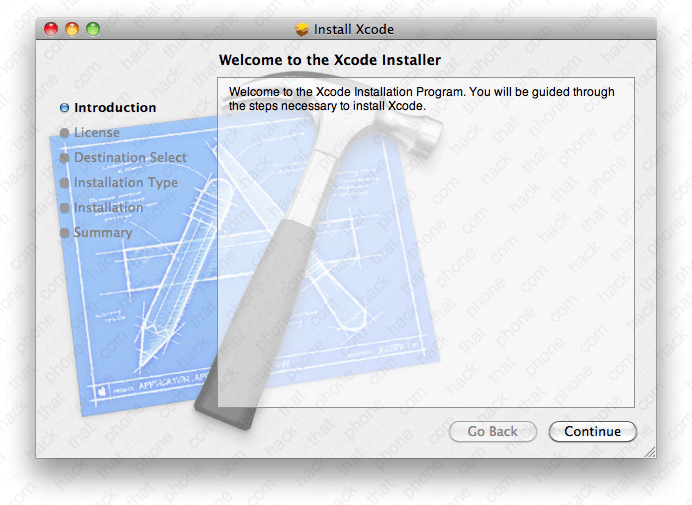
I am running OS X 10.6.4 as of this writing. Because of this I need to install XCode as I'm relying on a program called Fink to help create my repository. So grab your OS X Snow Leopard install DVD. Double click on Optional Installs.
Double click the Xcode.mpkg.

Then follow the installation instructions.
Step 2.
Next we'll install a program called Fink. Unfortunately there isn't a Fink binary for 10.6 so we have to do a little more than just click a button to install this program. The Fink installer will prompt you with a lot of questions before it begins installing. Because of this I'm not going to screen shot the entire installation process. Most of the questions it asks can be answered with the default reply or none as a response.Download Fink here. Make sure to pick the version that applies to you. Double click this file and you'll receive a folder.

Go to your Applications folder, then to the Utilities folder and launch a program called Terminal.app.

Type the letters cd and then leave a space after it. Go to the fink folder on your desktop and drag it into the Terminal. You'll see the path to that folder added after the letters cd. Then press enter. Your prompt has now changed to the location of that folder.

Enter the following command:
./bootstrap
Then press enter. Make your selection at this prompt. I chose 1, then pressed enter.

Eventually this installation process will end. It took about 20 minutes. Note: My install path was /sw2, yours may be /sw.
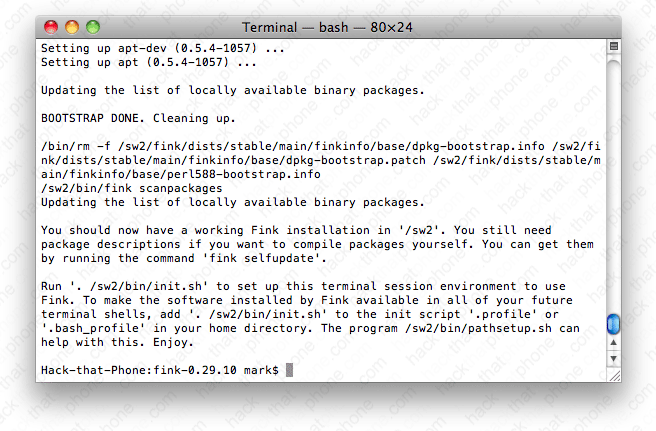
Enter the following command (there is an option presented):
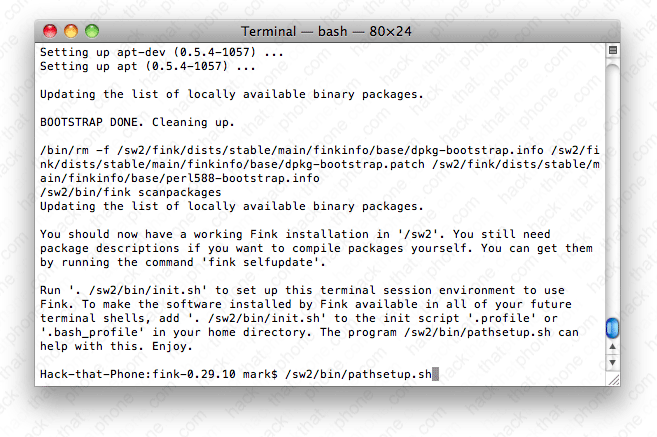
/sw2/bin/pathsetup.sh Only if you installed in /sw2, otherwise enter...
/sw/bin/pathsetup.sh
Then press enter.
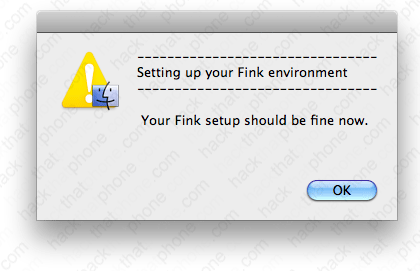
A screen popped up next but I didn't have time to grab it, and I'm certainly not reinstalling all over again. This message then appeared.
Step 3.
Download DS_Store Cleaner version 1.5 from Ryan Grier's Projects website here. When you double click the downloaded file, it will place the application on your desktop.
You'll want to put this in your Applications folder on your Mac. Then launch the application, and keep it in the bacgkround. We'll be using this program a couple times throughout this tutorial.
Step 4.
Create a folder on your desktop called MyProgram.
Create folders called Applications and DEBIAN inside the MyProgram folder.
Note: I'm installing a program in this tutorial. In another tutorial I will demonstrate how to install a theme. All programs must go into the folder called Applications. This is because the contents of the Applications folder will be installed into the /Applications folder on the iPhone.

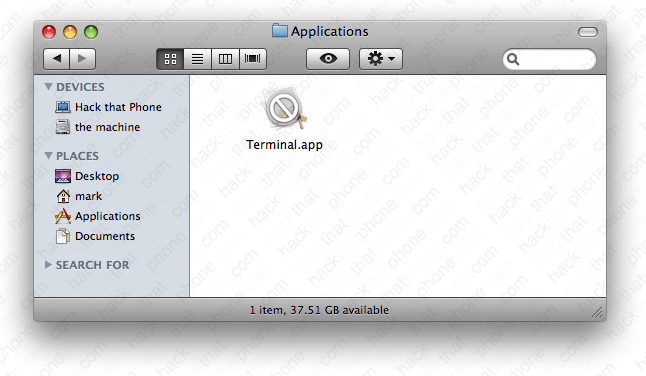
Now place your application into the Applications folder. In my example I am using a program called Terminal. This program is already on Cydia, but I'm not a programmer so I don't have my own application to make an example with.
Step 5.
Go to the Applications folder on your Mac, and launch the program TextEdit.
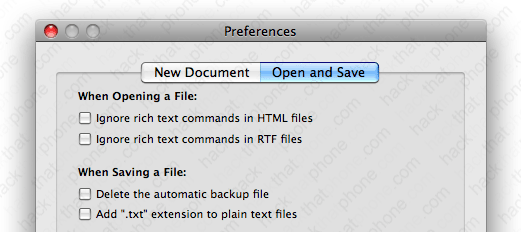
Verify the following preferences are set. In the New Document pane, check the box for Plain text.

In the Open and Save pane, uncheck the box for Add ".txt" extension to plain text files.
Open a new file. Paste the following text into your file.
Website: http://www.yoursite.com
Maintainer: You.
Name: Name of package.
Package: Bundle identifier.
Section: Where in Cydia it wil appear.
Version: Package version.
Architecture: iphoneos-arm
Description: Information about package.
Sponsor: You. (Make sure to press return after this line. There must be a blank line under this entry!)
My text looked like this after I edited it.

Click File, Save As... Name the file control and select Unicode (UTF-8) as the encoding method.

Place the control file in your MyProgram/DEBIAN folder.

