Factory unlocked iPhone 4
Posted: June 20, 2011On June 14, 2011 Apple released an unlocked version of the iPhone 4 in the United States. To determine if your iPhone is factory unlocked launch Settings, press General, then select About then look at the Model entry.
- MC603LL/A is the black 16GB version.
- MC605LL/A is the black 32GB version.
- MC604LL/A is the white 16GB version.
- MC606LL/A is the white 32GB version.
To order the unlocked iPhone go to this page: http://store.apple.com/us/browse/home/shop_iphone/family/iphone Then click on this banner:

Step 1.
The unlocked iPhone does not come with a SIM card. Upon boot up you will see the no SIM card installed message and a connect to iTunes logo.
Regardless of the SIM installed, you must connect the iPhone to iTunes to activate it. Activation is immediate (even with an inactive SIM installed). You'll see this screen next.

The iPhone searched for the network, and my T-Mobile SIM was working within a minute. Note my modem firmware version. Eat your heart out ultrasn0w users!


Continue registering your iPhone and you'll wind up at this screen.

Step 2.
If you are at all concerned about being able to restore to firmware that Apple doesn't approve of (read firmware that is not the most recent), then you'll want to follow this step next. If you don't care about this, skip ahead to Step 3 and I'll show you how to jailbreak this factory unlocked iPhone.Download the TinyUmbrella program here.
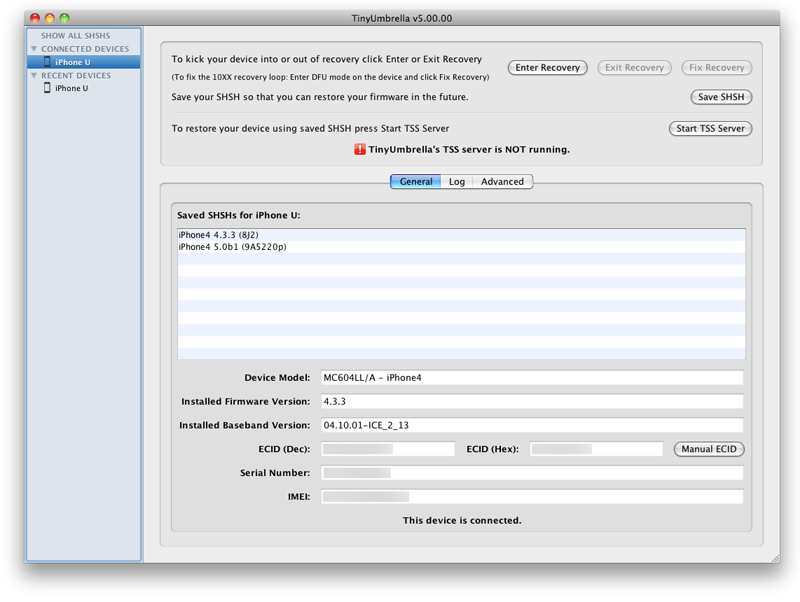
Once you've installed the program, launched it and connected your iPhone, you'll see this screen. The general tab should be open by default. You'll see I have no SHSHs saved yet.

Click on the advanced tab. Ensure the box "Request SHSH From Cydia" is not checked.
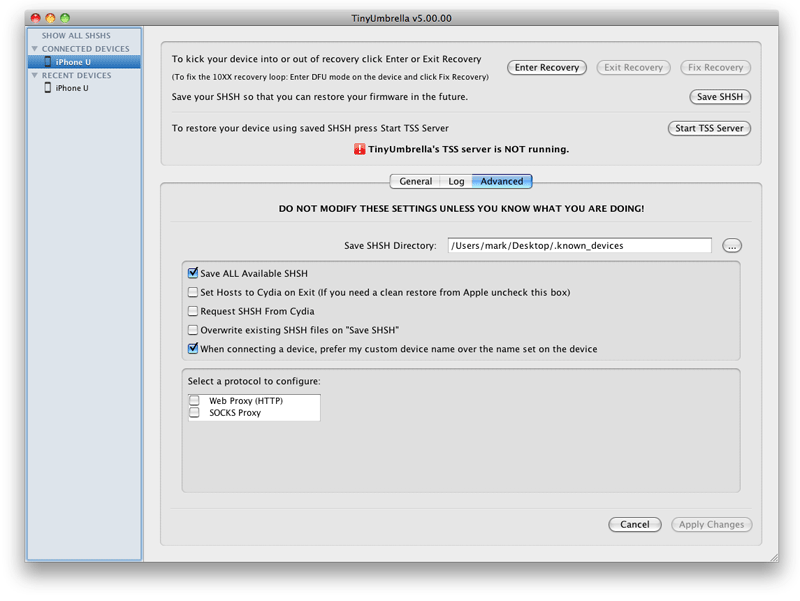
Go back to the general tab. Click the Save SHSH button. Wait a minute and some file(s) should download. I have 4.3.3 and the iOS 5.0 beta saved. What this means is if newer firmware is released, then you can restore to the firmware(s) that you have SHSHs saved for indefinitely.
If you want to see how to restore to unapproved of firmware, read this tutorial.
Step 3.
Let's jailbreak this iPhone next. It's running 4.3.3 firmware, and redsn0w is the fastest way to jailbreak.Download iOS 4.3.3 firmware for the iPhone 4 from Apple here:
http://appldnld.apple.com/iPhone4/041-1011.20110503.q7fGc/iPhone3,1_4.3.3_8J2_Restore.ipsw
If your downloaded firmware file ends in .zip, rename it to end in .ipsw. Note: Safari likes to open "safe" files by default. You must turn this feature off for this download to work correctly. Click "Safari", select "Preferences", from the "Geneal" tab uncheck the box that says "Open "safe" files after downloading". Otherwise just use Firefox to download this firmware file.
Download redsn0w 0.9.6rc18 (or later) from the iPhone Dev Team here.
You should now have these two icons on your desktop.

Double click the redsn0w file and it will place a folder on your desktop. Go into this folder and place the redsn0w.app file into your Applications folder on your computer. Overwrite any previous versions.

Launch redsn0w. Click the Browse button. Note: From now on, all redsn0w tutorials will not display a program version number. This allows me to create the tutorials quicker as I won't have take a lot of new screen shots every time the program is updated.

A file browser will open. Navigate to your 4.3.3 firmware file, select it and click Open. Ensure you are selecting the correct firmware file.

The ipsw should be identified. Click Next.

A pop up window will appear.
Redsn0w will present a few options. Install Cydia is already checked.

- Install Cydia is for adding the Cydia program to gain access to the jailbreak community of applications.
- Install custom bundle is for adding your own .tgz or .tar.gz files to the jailbreak. When you select this a file browser window will open.
- Allow boot animation lets you install an animated .gif that will replace the Apple logo on boot up.
- Enable multitask gestures.
- Just boot tethered right now - is for those that are already jailbroken via a tethered method and need only reboot, not jailbreak all over again.
- Just enter pwned DFU mode right now - walks you through DFU mode used for restoring purposes.
Turn off the iPhone, ensure it is connected via USB and click Next.

Instructions for entering DFU mode will appear. They start right away and go very quickly so try to keep up! Press and hold the on/off (sleep/wake) button for three seconds

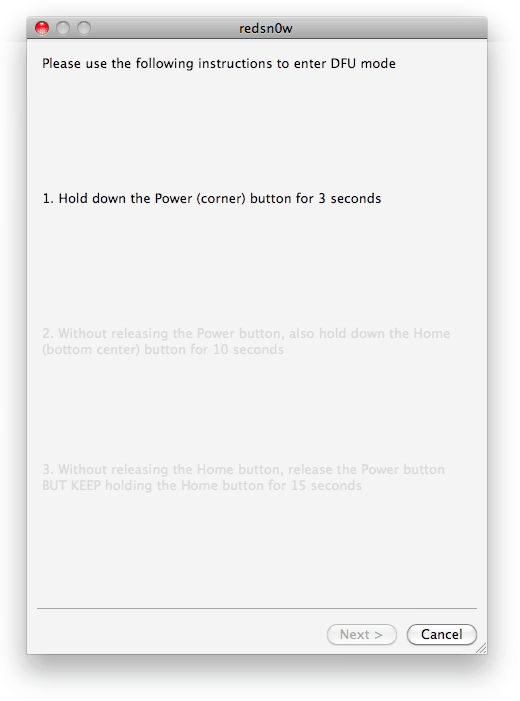
While holding the on/off (sleep/wake) button, press and hold the home button.


Release the on/off button, but keep holding the home button.


Redsn0w will display various messages: Jailbreaking, Extracting kernel, Decrypting main filesystem, Extracting system files, Exploiting with limera1n, Uploading first stage, Waiting for reboot.

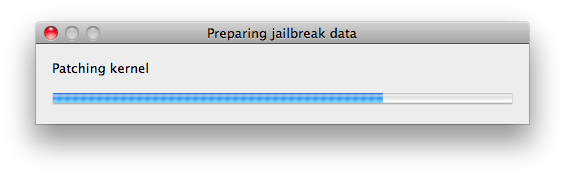
You'll see a graphic that says jailbreak data is being downloaded on the iPhone. Redsn0w will display more messages: Uploading logo, Uploading ramdisk, Uploading kernel, Rebooting. Text will scroll on the iPhone's screen.


You will see a few different messages (Installing base utilities, Replacing kernel, Flashing NOR, Installing bundles, Activating, Syncing file systems, Moving Applications, Rebooting) on your iPhone during the next couple minutes. The iPhone will reboot once this has finished.


Done will appear in the program.

You should now see the Cydia icon on your springboard. You are now jailbroken.

Step 4.
Launch Cydia and it will also store your SHSH.

I hear Cydia may not offer this feature much longer. In order to restore with Cydia read this tutorial. Skip to the Cydia portion.
