Using the iPhone 4 with T-Mobile
Updated: October 15, 2010Page 1 of 2
Who is this guide for?
- iPhone 4 owners (already activated)
- 4.0 or 4.0.1 firmware
This will be the last update to this tutorial until 5.x firmware is released. I am not renewing my T-Mobile plan as I can't afford the monthly expense.
I have the T-Mobile "Even More Plus" plan. This includes individual talk, text, and web. There is no contract. You can read more about these plans and see prices here.
T-Mobile's 3G network frequencies are NOT compatible with the 3G radio built into the iPhone. You will NOT receive 3G service from T-Mobile. You can surf the 'Net using EDGE service, but it's slower. No, there is NOTHING you can do to fix this!
I'm sure there are many ways to do what I'm going to demonstrate. This is what worked for me. First I jailbroke and unlocked my iPhone 4 using this tutorial.
Notes for those on 4.1 firmware. I don't know if I will update this tutorial beyond these brief
notes. Here are some issues I came across when using 4.1 firmware via the limera1n jailbreak:
|
Step 1. EDGE data
Your iPhone 4 should be at this point by now if you are using this tutorial.
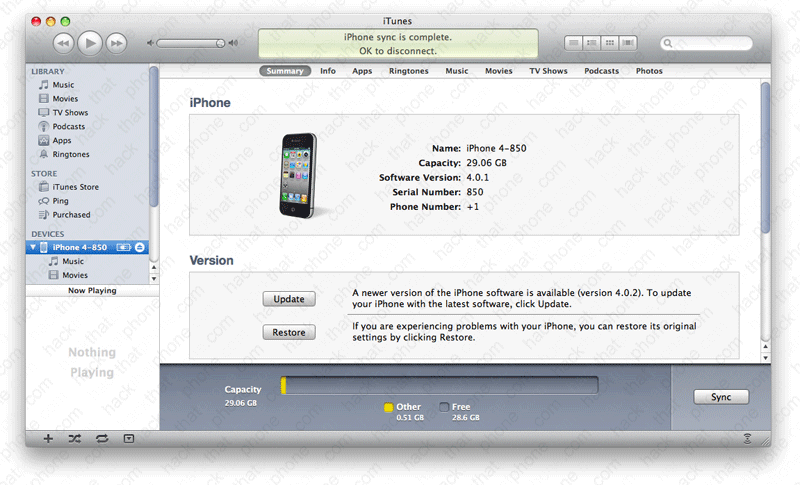
iTunes should recognize your iPhone and display your T-Mobile phone number. Obviously I hide that information in my screen shots.
Launch Settings, press General, press Network and make sure the Enable 3G slider is set to off. Note that there is no Cellular Data menu button yet, only the slider... I've already shut off my Wi-Fi so I can test EDGE Internet connectivity. It works just fine.


Step 2. Tethering
I shut off the Wi-Fi on my Mac and hooked up my iPhone with the USB cable (I'd rather not tether over Bluetooth, but it's an option). I hate that whenever activating or disabling tethering that iTunes and iPhoto launch. Launch Settings, press General, press Network and press Internet Tethering. Slide the slider to on.
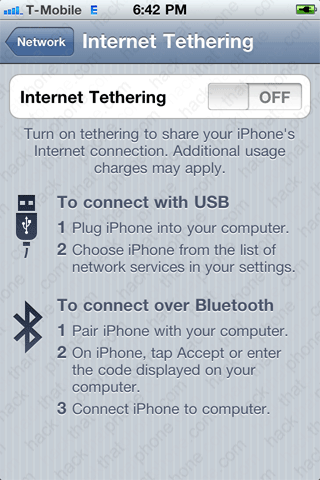
Here you can choose Bluetooth or USB. The switch is now in the on position.

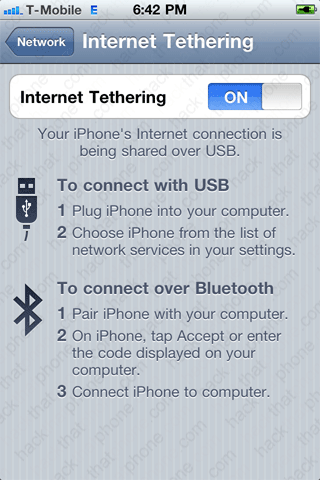
One of two things should happen: you'll receive a pop up message telling you that a new network interface has been detected. If this happens then click the Network Preferences... button.

Otherwise launch System Preferences yourself. Click on Network in the Internet & Wireless section.

Click the + button just above the lock at the bottom of the screen.

You should receive this pop up. Everything was already selected for me in the boxes. Click the Create button.

The iPhone will now appear in the list on the left. I selected the iPhone and then clicked the Apply button in the lower right corner.
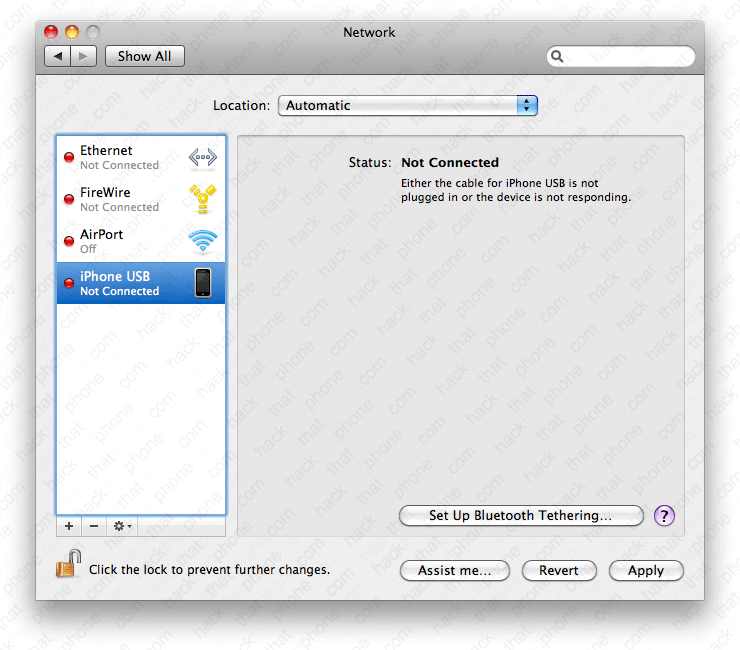
The iPhone moved to the top of the list and connected.

When you are tethering a blue bar appears on various screens on the iPhone so you don't forget.


My Mac is now tethering.

Shut off tethering when you are done. You can monitor your data consumption by launching Settings, pressing General, then pressing Usage.


