Jailbreaking the iPhone 4 on 4.2.1 firmware with greenpois0n and unlocking with ultrasn0w
Updated: February 8, 2011Who is this guide for?
- iPhone 4 owners.
- Official SIM card, or unofficial SIM card.
- I used iTunes version 10.1.2.
- I used OS X 10.6.6.
Thanks go out to the Chronic Dev Team for providing this amazing, and FREE program for customizing the iPhone. You can visit their website here, their blog here, and their Twitter here.
Some notes if you are already jailbroken using a previous method.
- If you used redsn0w to achieve a tethered jailbreak on 4.2.1 then just follow these instructions. If you have any problems, then restore the phone to 4.2.1 and try again. Keeping in mind that restoring updates modem firmware, so do so properly.
- If you used redsn0w and performed the Jailbreak Monte method to untether, then you MUST restore to 4.2.1 first before using this tutorial. Keeping in mind that restoring updates modem firmware, so do so properly.
The iPhone 4 I'm using is currently on 4.0 firmware with 01.59.00 modem firmware. It has never been jailbroken. If your modem firmware is any other version then you can not unlock.


Step 1.
Download greenpois0n here. Double click the .zip to decompress it. A folder will appear. Open the folder and drag the greenpois0n.app icon into your Applications folder on your Mac.
Download TinyUmbrella here. Double click the .pkg and install the program. The version may be newer than what is pictured.

Download iPhone 4 4.2.1 firmware here:
http://appldnld.apple.com/iPhone4/061-9858.20101122.Er456/iPhone3,1_4.2.1_8C148_Restore.ipsw
Step 2.
Launch TinyUmbrella. Click your iPhone in the connected devices heading. Click the Save SHSH button and it will retrieve every SHSH it can for your device. This may take several minutes. Keep TinyUmbrella open, you'll need it shortly. The TSS server is NOT running at any point!
Step 3.
On your Mac, go to your Applications folder, then go into the Utilities folder. Launch the Terminal.app program. Enter the following:
sudo nano /private/etc/hosts
You'll be prompted for your password so enter it.

If you see the line 74.208.10.249 gs.apple.com then you are good to go. This means that any requests to the Apple verification server will instead be directed to the Cydia server. Ensure this line does not have a # symbol at the beginning! Double check this, especially if you happened to start the TSS server by mistake and then stopped it. If you screw this up your modem firmware will be updated and you will be unable to unlock at present. You can close the Terminal at this point

Step 4.
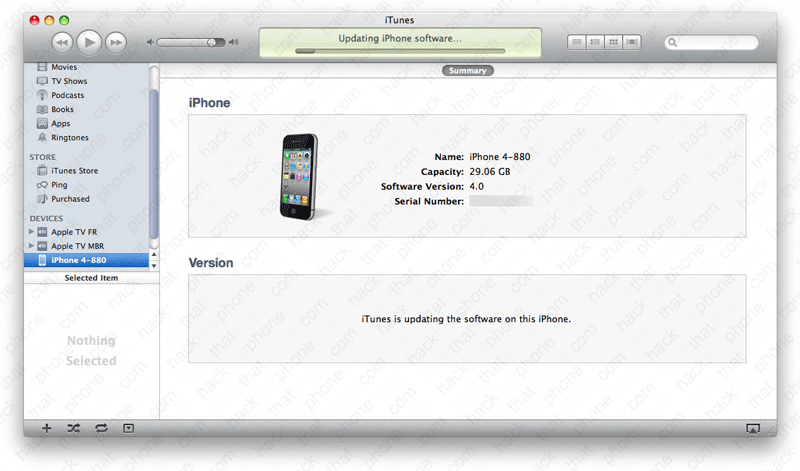
Launch iTunes. Press the Option key on your Mac and click Update. Do NOT click Restore!
Navigate to your 4.2.1 firmware, select it and click Choose.

This message better say update and not restore. Click Update.

The updating process will take several minutes.
A status bar on the iPhone will display the progress of the update.

When the process completes you'll receive a pop up with error 1013. Click OK.

Another pop up will appear. Click OK.

The iPhone will display the connect to iTunes graphic.

Go back to TinyUmbrella. Select the iPhone in the Recovery Devices section, then click the Exit Recovery button. The iPhone will boot after a minute of displaying the status bar graphic (seen during the update process). You can close TinyUmbrella now.

If you launch Settings, and go to General, About you'll see at this point that you are on 4.2.1 firmware and still have your 01.59.00 modem firmware. I left my iPhone on. Even if you don't have an official SIM in your iPhone you should still be able to get to these screens since an update shouldn't affect your activation.


Step 5.
Launch greenpois0n. Make sure your iPhone is plugged into your Mac. Click the Jailbreak button.
You'll have three seconds to press and hold the Power (sleep/wake) button.

While holding the Power button press and hold the Home button.

Release the Sleep button, but keep holding the Home button.

A blue status bar will zip by a few times.

A couple lines of text will appear at the top of the screen. Then code will scroll and fill up the screen.

Click the Complete button and the program will close.

The code will pause for about one minute and then continue scrolling slower. A skull logo will appear on the iPhone and change to an Apple. You may also see a spinning wheel under the skull. Note: this new animation logo makes the phone boot slower. If you want to remove the skull logo then install OpenSSH onto the iPhone and then go to the /usr/bin directory and delete (or rename) the file named animate.

Step 6.
Ensure you have an Internet connection then press the Loader icon. Press Cydia.
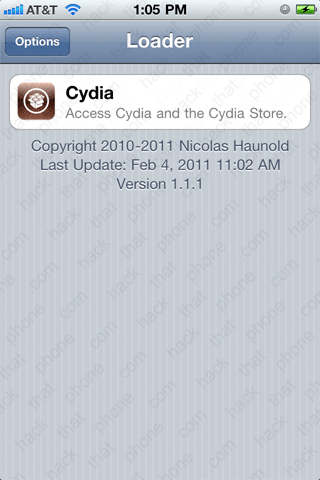
Press Install Cydia. When it finishes downloading press the Home button and the iPhone will respring.


You should see the Cydia icon. If not, then reboot the iPhone. Launch Cydia and it will initialize the filesystem. After a minute Cydia will close.


Launch the Loader program again. Press the Options button.


Press Remove Loader.app. The iPhone will respring and the Loader will be gone.


Launch Cydia. Press Upgrade Essential. Search for ultrasn0w and install it as well.


Switch out your SIM card (unless you already did).

After the iPhone reboots you can enjoy your non-AT&T network.


