Jailbreaking & unlocking the iPhone 3G, iPhone 3G S & iPhone 4 (AT&T / Verizon) with PwnageTool
Page 2 of 2Step 4.
Launch iTunes. A pop up from iTunes will appear. Click OK.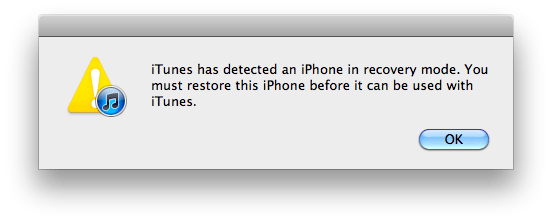
You should see this in iTunes.

Press the Option key on your keyboard, and click the Restore button in iTunes. In the pop up window that opens, navigate to the custom .ipsw file that was saved to your desktop by PwnageTool during Step 3.
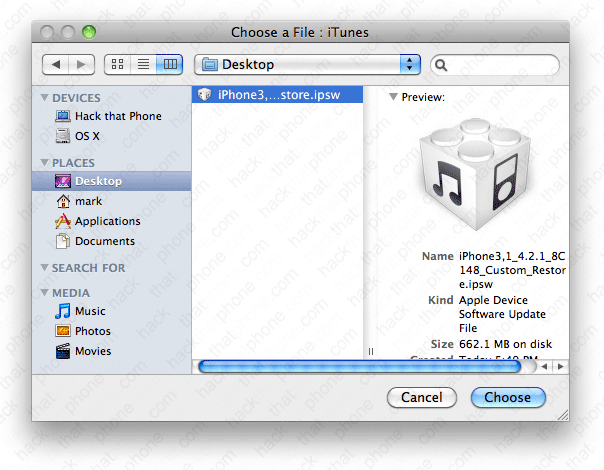
Click Restore.
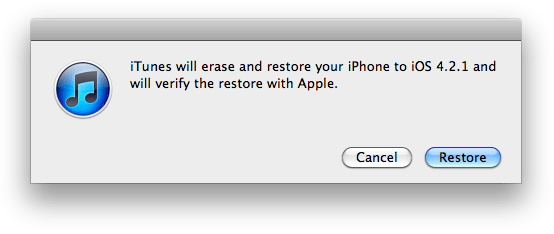
iTunes will display various status messages while the restore process proceeds.
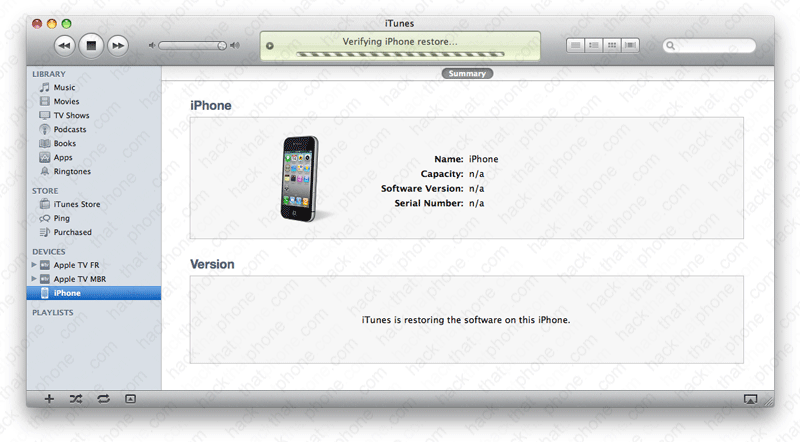
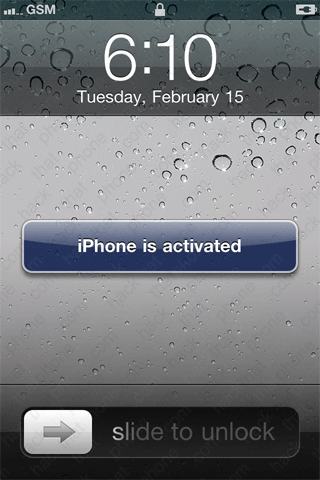
The iPhone's screen will turn white, and you'll see this status bar graphic on the iPhone as the installation process continues. When it has finished restoring you may see an activation message on the iPhone. I used an active H2O SIM, that's why I have bars displaying.

Step 5.
iTunes should prompt you to set up the iPhone. You should not restore from a backup. Click Continue.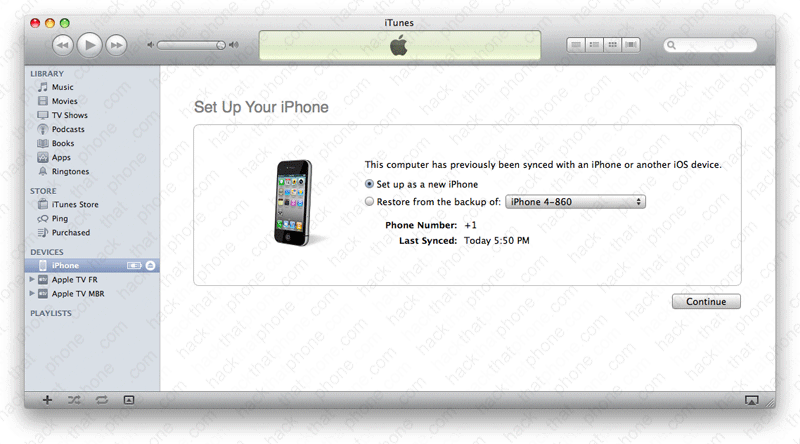
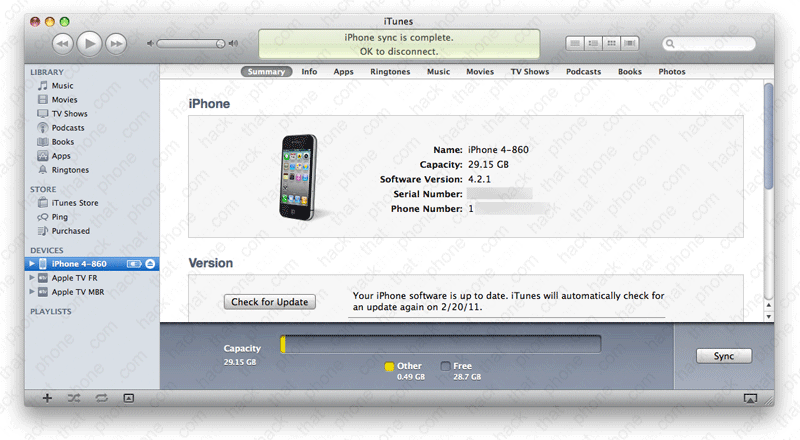
iTunes will confirm you are on 4.2.1 firmware. Note: I erased by my serial number and phone number for privacy reasons.
Step 6.
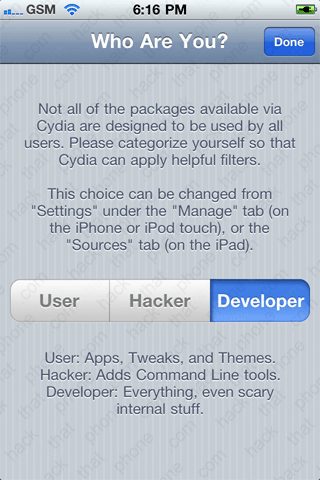
Cydia (if you selected it) has been placed on the SpringBoard. Launch it. Make your selection at this screen and press the Done button.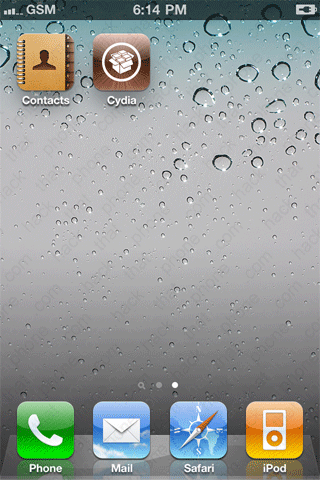
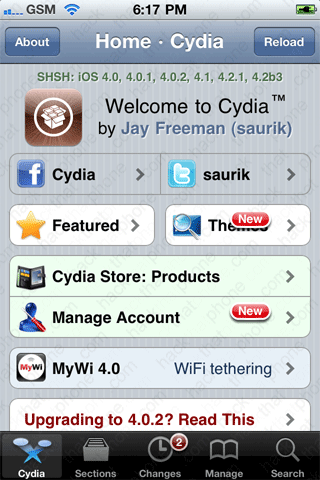
Press Ignore (Temporary). Press the Search button.

If this is the first time your iPhone has been jailbroken and Cydia launched, you will instead be
greeted with this message. You want to press the button that says Make my life easier, thanks! This
will enable Cydia to store your SHSH for your iPhone so that you can continue to restore to this
firmware even when Apple won't sign the firmware any more.


|
|
|
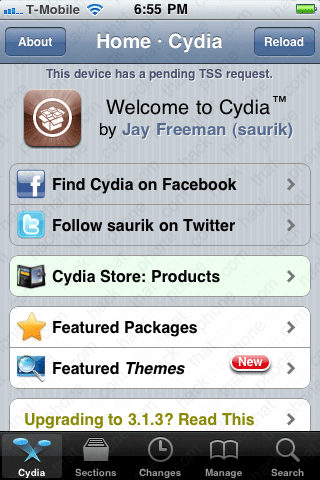
The next time you launch Cydia you'll see the message: This device has a pending TSS request. Cydia will eventually send your ECID to Apple and then capture the signature file that Apple sends to approve the restore. When it has this file captured it will state that you have an SHSHon file for that particular firmware. Because it could take Cydia some time (I've seen it take weeks) to capture this file and report it as captured, you need to read and follow my TinyUmbrella tutorial here, to get this file directly from Apple immediately. |
|
Enter ultrasn0w and press the program name to select the program for installation.

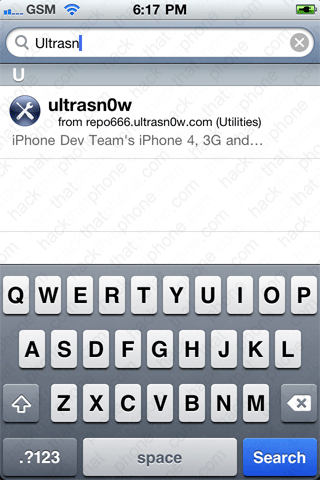
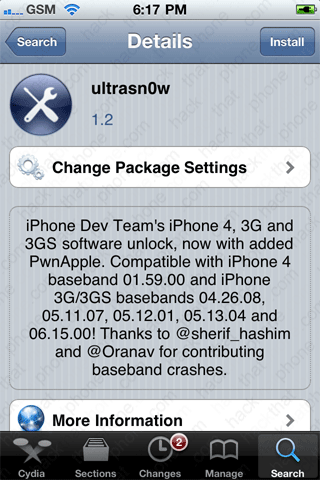
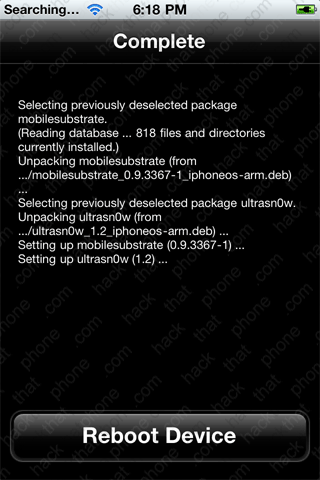
Press the Install button. When it is finished, press the Reboot Device button.
Switch out your SIM card (unless you already did).


| If you have a full size SIM card and need to cut it down to size you have two options. Use a SIM cutting tool. It takes a full size SIM and punches out the micro SIM from it. It makes such a clean cut that you can even put the micro SIM back into the full size SIM card and use it in a regular phone. Here's the place I bought it from: MicroSIMCutter.com. It took a month to arrive. After using you can see how much of the gold contact is left on the main card. I also have an O2 SIM that I cut which did not have any of the gold contact material left on the main card. My T-Mobile SIM is several years old. If you'd rather cut your SIM by hand you can try one of the printable templates from this site. |

|
When the iPhone reboots you should now see your carrier name displayed. If you don't already have carrier bars, double check that your 3G slider is set to off in Settings, General, Network. I've had to shut this switch off more than once before.


Restoring the iPhone back to stock configuration
If you want to remove all evidence of the jailbreak and the unlock, then simply restore your iPhone using iTunes. Keep in mind clicking update or restore may put you on newer firmware that can not be jailbroken or unlocked. You will also need an official SIM to activate the iPhone again.Updating your iPhone to newer firmware
Once a new firmware has been released it takes time to craft a new jailbreak and a new unlock, or a work around for the unlock. Do not update your jailbroken/unlocked iPhone if you value its current state of operation. I will post a tutorial on how to get newer firmware installed when it is possible.Changing the carrier name (Verizon only)
For all other iPhones see my WinterBoard series of tutorials for how to change the carrier logo.There are two methods for changing the carrier logo: using a graphic, or using text.
I must give credit to "HellKatzX" over at the ModMyi.com forums as he figured out how to use a graphical logo for the carrier name. Someone will probably turn the graphical mod into a Cydia package, but in the mean time here is how to do it the hard way...
First read my OpenSSH tutorial here. Then navigate to your /private/var/mobile/Library/Carrier Bundles/iPhone/Zeppelin_US.bundle on your iPhone. Copy the Zeppelin_US.bundle to your computer and then make a duplicate of the bundle to keep as a backup in case you do something wrong. Using one of the copies, right click it and select Show Package Contents. Right click the carrier.plist file and open it in an editing program like BBEdit. Then look for these two lines of code:
<key>StaticNATType</key>
<integer>448</integer>
Directly below them copy and paste this code:
<key>StatusBarImages</key>
<array>
<dict>
<key>AllowPrefixMatching</key>
<false/>
<key>CarrierName</key>
<string>Verizon</string>
<key>DefaultImage</key>
<string>Default_CARRIER_Zeppelin_US.png</string>
<key>FullScreenOpaqueImage</key>
<string>FSO_CARRIER_Zeppelin_US.png</string>
<key>StatusBarCarrierName</key>
<string>Verizon</string>
</dict>
</array>
Then save the carrier.plist file in your editing program and it'll update the file in the bundle. Now you need two graphics. "HellKatzX" also supplied these which I'm displaying below. Simply drag them into the bundle folder where you just modifed the .plist file.


Close the package contents view window for the bundle, then drag the bundle file back into the iPhone folder at /private/var/mobile/Library/Carrier Bundles/iPhone and replace the original bundle file. Respring your iPhone and the graphic will display.
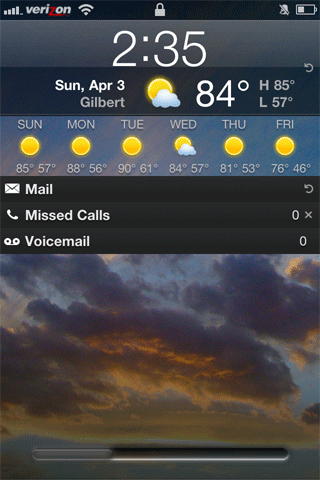
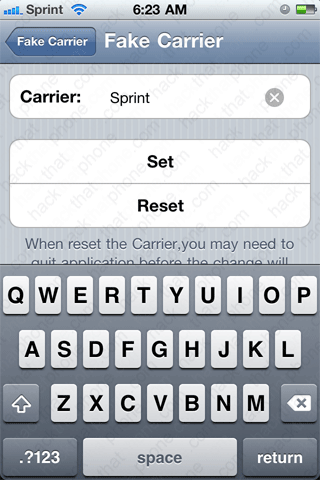
You can also change the text to say something else. Launch Cydia and install the program FakeCarrier. When it's finished, press the home button and launch the FakeCarrier app. Enter the name you want and press the Set button and it will instantly change the name.