Installing OpenSSH, using YummyFTP, and changing the root & mobile passwords
Page 1 of 2Note: If you are only interested in using Cydia or the App Store to install applications on your iPhone, then you do not need to perform anything in this tutorial.
If you are interested in hacking the iPhone to change core features, you are going to need to have a couple programs installed on both your phone and your Mac. In this tutorial we will use Cydia to install OpenSSH, and SBSettings onto the iPhone. You will also install YummyFTP on your Mac. This program has the ability to serve as an SSH client that will be used to talk to the iPhone. You will then use the Terminal on your Mac, to SSH into the iPhone and change the root and mobile passwords, which are set to "alpine" by default.
Step 1.
Press Settings, General, Auto-Lock and set it to Never. You should always do this when working with OpenSSH. If the iPhone should sleep, you will lose your connection and possibly data. If this happens during a critical process you could damage the iPhone, or have data corruption issues.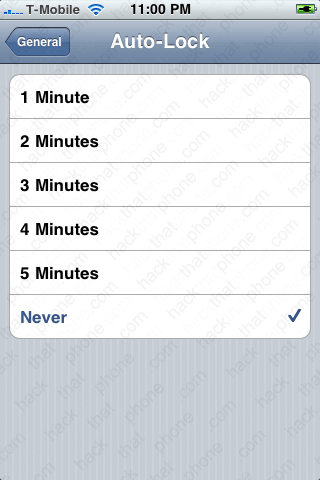
Step 2.
Launch Cydia. It will open at the Home screen.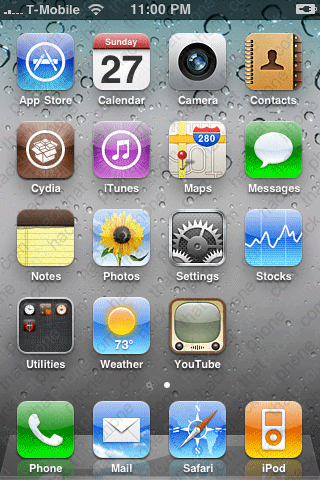

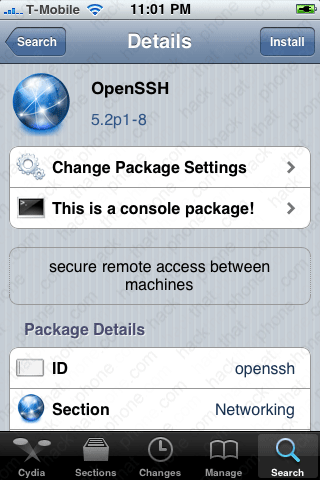
Press the Search button. Enter openssh and the program will appear. Press it to install it.


Then press Install, and confirm it. When OpenSSH has finished installing go back to the Search page in Cydia. Type in sbsettings. There will be a lot of results. Make sure the one you are installing is made by BigBoss.

Press Install and confirm it. When it has finished installing, press the Restart SpringBoard button.
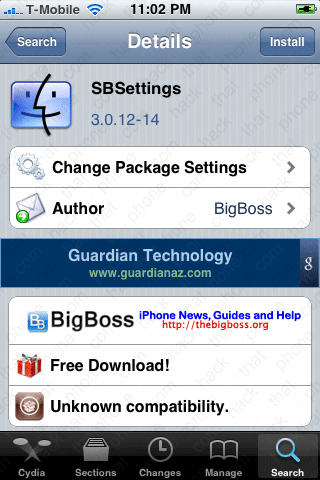
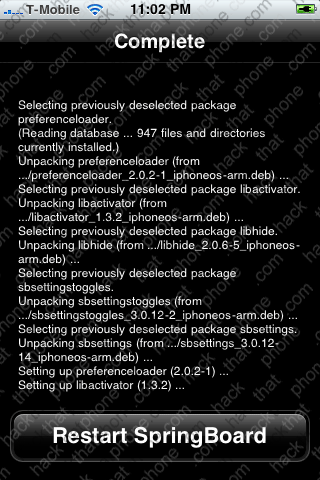
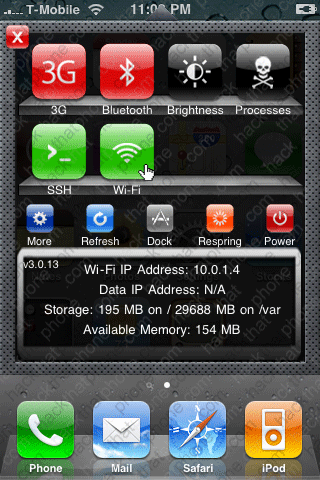
Back at your SpringBoard, you'll see that neither OpenSSH or SBSettings installs a program icon. You don't need an icon for OpenSSH, as you can toggle whether it is on or off with SBSettings. To launch SBSettings just slide your finger from left to right over your status bar.
This is the control panel for SBSettings. When an icon is in red (like Bluetooth), it means it is currently turned off. Just press the icon to toggle it between on and off. You must have your SSH and Wi-Fi turned on. Note your Wi-Fi IP Address. Mine is 10.0.1.4. To close SBSettings press the red X in the upper left corner, or the black triangle which is covering the time.