Read me first
Page 3 of 4As a general rule when Apple releases new firmware for the iPhone it isn't immediately jailbreakable upon release. It can take a few weeks until a jailbreak is released. It can take even longer before an unlock for a new firmware is released, and is generally a more complicated method to follow.
These are the topics I will cover on these final two pages:
- Jailbreaking issues
- iPhone models
- What firmware is jailbreakable/unlockable?
- Why are there five categories of Step 1 tutorials? Which is the right one for me?
- How to retrieve firmware files directly from Apple
- Downgrading firmware
- What is an ECID SHSH and how do I save it?
- Step 2: I've jailbroken, now what?
- What else does your site offer?
This is a lot of information to read. I think it is vital to understand what you are about to do instead of being foolish and just jumping in, and potentially screwing up your iPhone. iPhone modding forums are chock full of short-sighted people and their sad stories about how they updated "accidentally" (whatever that means) littering the boards. Many people in those forums love to repeat the same things over and over in an effort to help others out of their predicaments. I am not one of those people. It is my hope to thoroughly educate you in everything regarding jailbreaking and unlocking. All you have to do to is read a couple of the pages on this site. If you run into a problem it is because you didn't read and prepare yourself beforehand. If this happens to you, I recommend clicking my News feeds button above and selecting a forum and going there to ask your questions.
If you don't have the patience for reading and learning, then maybe this isn't for you. Keep in mind I won't respond to emails asking about information contained in these very pages. Okay, end of lecture ;)
Jailbreaking issues
There are some things you should know before you perform anything on this site. There is obviously some risk involved here, but the majority of people have been able to restore their iPhones back to normal, should they get into trouble, by using iTunes. However, doing this will most certainly cause you to lose your jailbreak or unlock.- You risk voiding your warranty.
- Any modifications you perform on your iPhone, including bypassing activation, jailbreaking and unlocking, could be reset (or the option to rejailbreak or unlock blocked) if you should install a firmware update provided by Apple. It is usually just a matter of re-doing everything you previously did to get your iPhone back the way you had it. Sometimes this process becomes more protracted as the firmware updates work harder to resist our hacking attempts.
- Read the instructions in their entirety. If you can't follow directions, you may damage your iPhone requiring a replacement that will most likely be paid for by you.
- I am not responsible for your results if they are less than what you expected. You assume all risks. I recommend seeking help in iPhone hacking forums or in the various IRC channels.
- If you have not activated your iPhone via one of the official cell phone providers (AT&T, Verizon, et cetera), and do not pay them for your cellular phone service, then you will lack the ability to use visual voicemail and possibly FaceTime.
- Just because I was able to get something to work on my iPhone successfully is no guarantee you will be successful. This also falls under the heading of people failing to read all the directions, only using their heads for hat racks, and not ensuring their iPhones have the same conditions as mine. If you can't figure this out even after reading my directions, then maybe you shouldn't be doing this at all.
iPhone models
Before you can do anything you need to determine what iPhone you have. There are currently five generations of iPhones:- The first generation iPhone (also called the 2G because it offered EDGE data connectivity, a second generation cell phone technology), released in the summer of 2007. This phone can not run firmware higher than 3.1.3.
- The second generation iPhone (also called the 3G), released in the summer of 2008. This phone can not run firmware higher than 4.2.1.
- The third generation iPhone (also called the 3G S) released in the summer of 2009.
- The fourth generation iPhone (also called the iPhone 4) released in the summer of 2010 for the AT&T network, and in February 2011 for the Verizon network. An unlocked GSM version was released in June 2011.
- The fifth generation iPhone (also called the iPhone 4 S) released in the fall of 2011 for the AT&T, Sprint and Verizon networks. The iPhone is now a world phone. Because of this there is only one model of phone that handles the CDMA and GSM functionality instead of two separate models like the iPhone 4.
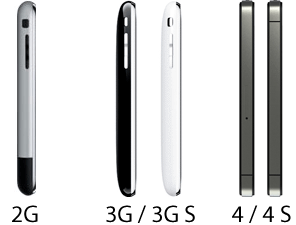
The iPhones on the far right are the fourth generation model (GSM and CDMA respectively) and are easily distinguished by the steel band that runs throughout the middle of the phone, with round volume buttons. It also has an all glass back panel. To tell the AT&T model apart from the Verizon model, simply look on the side opposite the volume buttons. The AT&T phone has a SIM tray, the Verizon phone does not. For the iPhone 4 S there will be a SIM tray and the steel band will have two breaks in it on both sides.
What firmware is jailbreakable/unlockable?
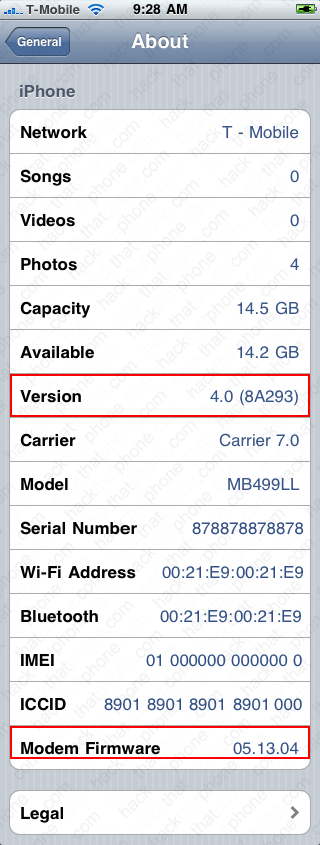
| To determine which firmware(s) you have on your iPhone, launch the Settings application, press
General, then press About. Look at the entry for "Version" (also referred to as firmware or OS).
It will have a number next to it and another number in parantheses. We're only concerned about the
first two (or three) digit number. In my example I have 4.0 firmware. So when you hear: Apple is
releasing new firmware, that is the number they are referring to.
There's another firmware number you should be aware of. This is the one that says "Modem Firmware". This is also referred to as baseband. Usually every time you update your firmware or OS (i.e. 4.0), the modem firmware gets updated too. While modem firmware updates are good for most iPhone users, they are usually bad for those who want to unlock their iPhones. New firmware releases (and hasty updates by iPhone owners) cause the modem firmware to be updated. It usually takes a long time for a new unlock to be released as a vulnerability must be found in the modem firmware to allow for the unlocking process to work. The image to the right is from a 3G. I have outlined in red, the two version numbers. If you are using 4.x firmware, then continue reading to page 4 to view your jailbreaking and unlocking options. If you are using 3.x firmware through 1.x, then click here for those tutorials. |
|
Listings in blue can not be jailbroken. Listings in red can not be unlocked.
| 1.0 | 03.11.02_G modem firmware (1st gen) | ||
| 1.0.1 | 03.12.08_G modem firmware (1st gen) | ||
| 1.0.2 | 03.14.08_G modem firmware (1st gen) | ||
| 1.1.1 | 04.01.13_G modem firmware (1st gen) | ||
| 1.1.2 | 04.02.13_G modem firmware (1st gen) | ||
| 1.1.3 | 04.03.13_G modem firmware (1st gen) | ||
| 1.1.4 | 04.04.05_G modem firmware (1st gen) | ||
| 2.0 | 04.05.04_G modem firmware (1st gen) | 01.45.00 modem firmware (3G) | |
| 2.0.1 | 01.48.02 modem firmware (3G) | ||
| 2.0.2 | 02.08.01 modem firmware (3G) | ||
| 2.1 | 02.11.07 modem firmware (3G) | ||
| 2.2 | 02.28.00 modem firmware (3G) | ||
| 2.2.1 | 02.30.03 modem firmware (3G) | ||
| 3.0 | 04.26.08 modem firmware (3G / 3G S) | ||
| 3.0.1 | 04.26.08 modem firmware (3G / 3G S) | ||
| 3.1 | 05.11.07 modem firmware (3G / 3G S) | ||
| 3.1.2 | 05.11.07 modem firmware (3G / 3G S) | ||
| 3.1.3 | 05.12.01 modem firmware (3G / 3G S) | ||
| 4.0 | 05.13.04 modem firmware (3G / 3G S) | 01.59.00 modem firmware (iPhone 4) | |
| 4.0.1 | 05.13.04 modem firmware (3G / 3G S) | 01.59.00 modem firmware (iPhone 4) | |
| 4.0.2 | 05.13.04 modem firmware (3G / 3G S) | 01.59.00 modem firmware (iPhone 4) | |
| 4.1 | 05.14.02 modem firmware (3G / 3G S)* | 02.10.04 modem firmware (iPhone 4) | |
| 4.2.1 | 05.15.04 modem firmware (3G / 3G S)* | 03.10.01 modem firmware (iPhone 4) | |
| 4.2.6 | iPhone 4 - Verizon | ||
| 4.2.7 | iPhone 4 - Verizon | ||
| 4.2.8 | iPhone 4 - Verizon | ||
| 4.2.9 | iPhone 4 - Verizon | ||
| 4.2.10 | iPhone 4 - Verizon (current) | ||
| 4.3 | 5.16.01 modem firmware (3G S)* | 4.10.01 modem firmware (iPhone 4)+ | |
| 4.3.1 | 5.16.02 modem firmware (3G S)* | 4.10.01 modem firmware (iPhone 4)+ | |
| 4.3.2 | 5.16.02 modem firmware (3G S)* | 4.10.01 modem firmware (iPhone 4)+ | |
| 4.3.3 | 5.16.02 modem firmware (3G S)* | 4.10.01 modem firmware (iPhone 4)+ | |
| 4.3.4# | 5.16.02 modem firmware (3G S)* | 4.10.01 modem firmware (iPhone 4)+ | |
| 4.3.5# | 5.16.02 modem firmware (3G S)* | 4.10.01 modem firmware (iPhone 4)+ | |
|
* You can install iPad baseband to unlock, but will lose GPS over 3G connectivity. There is no way to downgrade, once upgrading baseband to an iPad version. + Factory unlocked iPhone 4 comes with this modem firmware version. Read about this iPhone here. # Tethered jailbreak only via redsn0w. I do not write tethered jailbreak tutorials as they leave your iPhone in a state where the device can become unusable for several reasons, potentially leaving you without a phone in a critical situation. |
|||
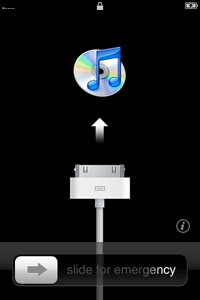
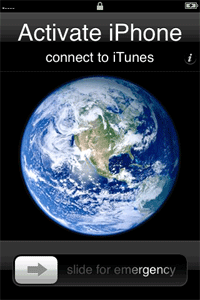
If you have a new iPhone that hasn't been activated or modified, then this is what you must do to determine what firmware you have. If you see the image on the left when you turn the iPhone on, then you have 4.2.1 - 4.3.5 firmware installed. If you see the image in the middle, then you have 4.0 - 4.1 firmware installed. If you see the image on the right, then you have either 2.x, or 3.x firmware installed.
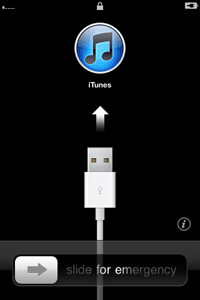
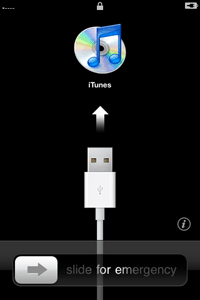
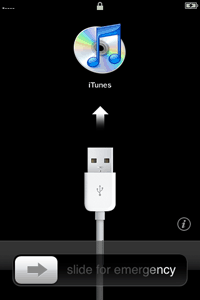
There are only two other images that will be displayed when turning on an unactivated iPhone. The image on the left is associated with firmware 1.1.2, 1.1.3, and 1.1.4 only. The image on the right is associated with firmware 1.0, 1.0.1, 1.0.2, and 1.1.1 only.