Creating a Cydia repository & adding your first package
Page 2 of 3Step 6.
Launch DS_Store_Cleaner. Drag your MyProgram folder into the program.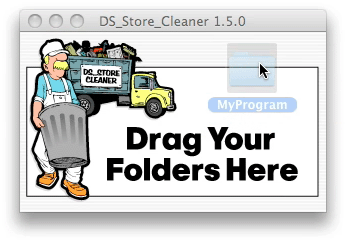
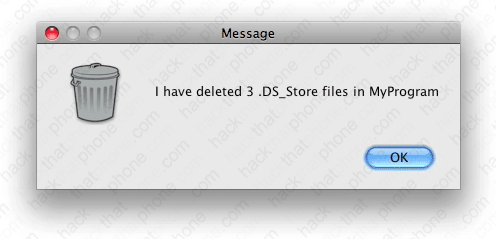
A message will appear confirming the deletion of the hidden .DS_Store files. Anytime you change the contents of your folders, these files are added. It is critical they be removed before generating the .deb file.
Step 7.
Launch the Terminal. Enter the following:cd /Users/your user name/Desktop
Press enter.
Enter the following:
dpkg-deb -b MyProgram
Press enter. There will be three warning messages about the user-defined fields website, name and sponsor. This is normal.
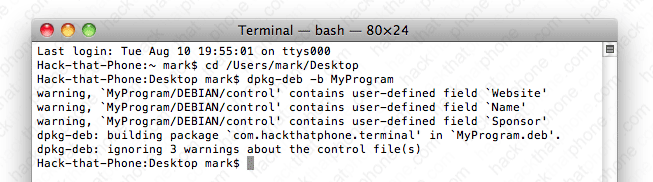
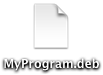
You will also see a file called MyProgram.deb was created, and placed on your desktop.
Step 8.
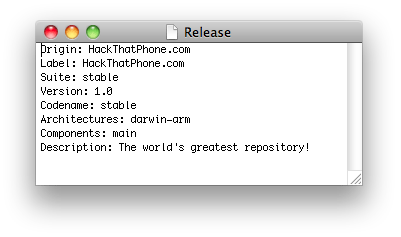
Create a new file with TextEdit. Paste the following text into your file.Origin: Name of your repository.
Label: What the user will see to go to your repository. This can be the same as Origin.
Suite: stable
Version: 1.0
Codename: stable
Architectures: darwin-arm
Components: main
Description: Description of your repository.
My text looked like this after I edited it.
Click File, Save As... Name the file Release and select Unicode (UTF-8) as the encoding method.
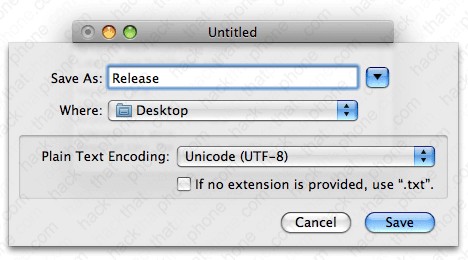
The Release file will be saved to the desktop.

Step 9.
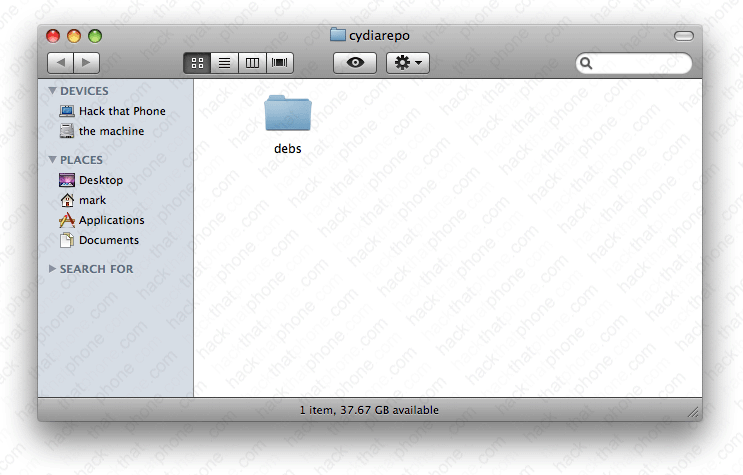
Create a folder called cydiarepo on your desktop.
Create a folder inside cydiarepo called debs.
Step 10.
Enter the following into the Terminal:dpkg-scanpackages -m . /dev/null -->Packages
Press enter.
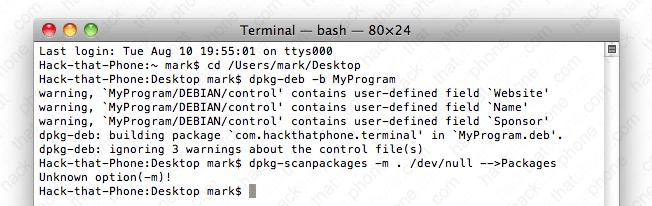
A file called Packages will be saved to your desktop.

Enter the following:
gzip -f Packages
Press enter.
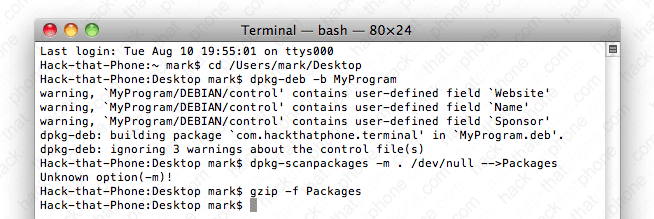
A file called Packages.gz will be created on the desktop, and the Packages file will disappear.

Double click the Packages.gz file to extract the Packages file. Now place the Packages, Packages.gz, and Release files into the cydiarepo folder.
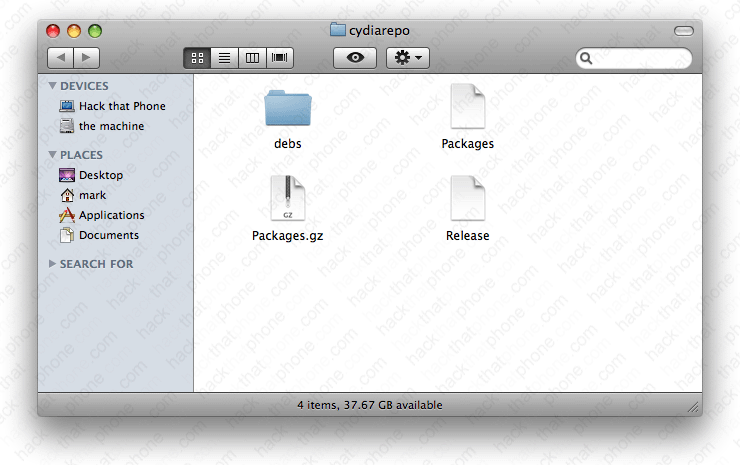
Step 11.
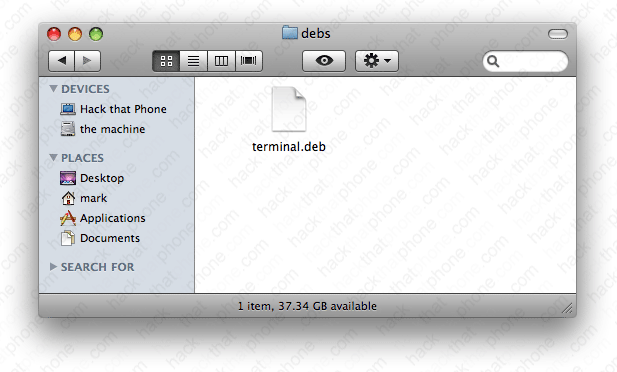
Place the MyProgram.deb file into the debs folder which is inside of the cydiarepo folder.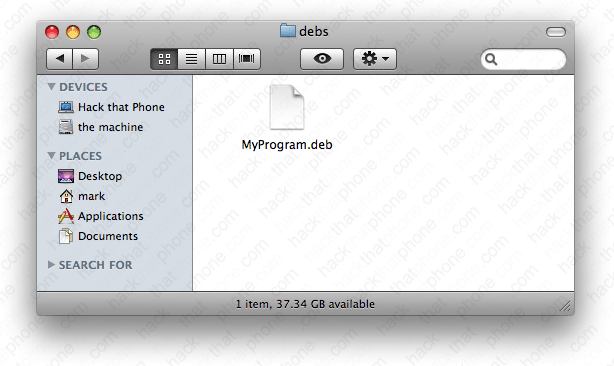
Rename the .deb file to whatever you want. The program I'm using here is called Terminal.
Step 12.
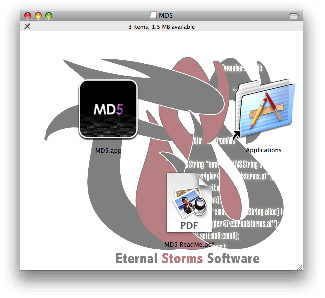
Download the MD5 (version 2.6) program from Eternal Storms software here. You should now have the file shown below. Double click it to retrieve the .dmg.

Double click the file to install it. Then drag the application icon to your Applications folder.
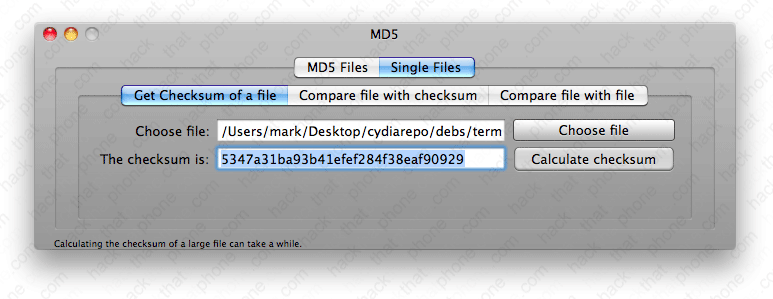
Launch the MD5 program and click the Single Files button. Drag your .deb file into the Choose file field of the program. The path to this file will be automatically entered for you.
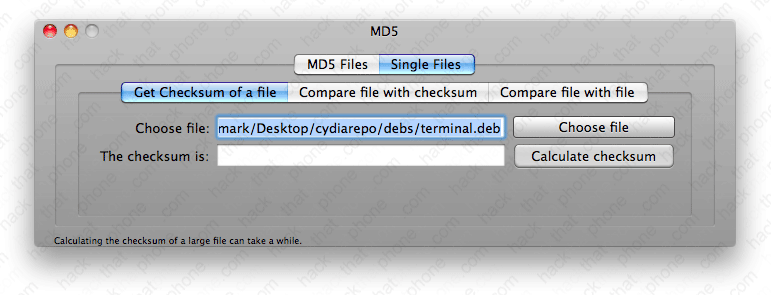
Click the Calculate checksum button. Keep this program open, we will be coming back to copy the checksum value into the Packages file.