Creating a Cydia repository - Adding a theme package
Page 1 of 2In the last lesson we created a Cydia repository and put the first item in it for distribution. I demonstrated how to assemble an application. This time I will demonstrate how to put together a theme package.
Note: This tutorial assumes you have WinterBoard already installed. I am not demonstrating how to add a "depends" line to your control and Packages files as I'm not sure what the depends is for WinterBoard or how to auto install it if it is not already present on the iPhone. I may update this in the future.
Step 1.
Create a program on your desktop called MyProgram2.
Create folders named DEBIAN and Library inside the MyProgram2 folder.
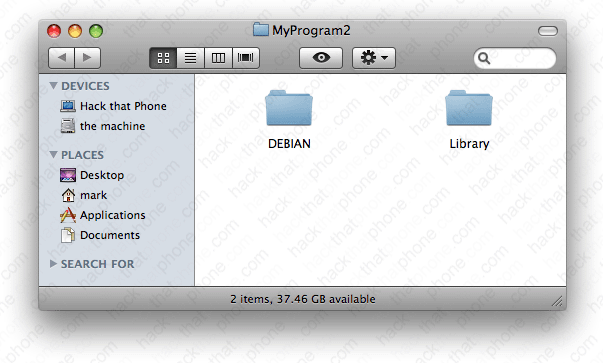
Inside the Library folder create a folder called Themes.
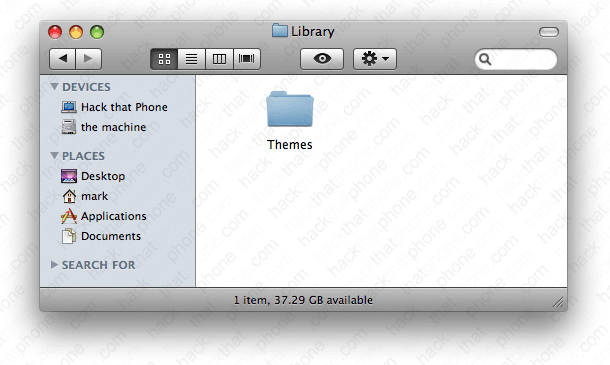
Inside the Themes folder create a folder named after your theme. (Mark's Theme in my case).
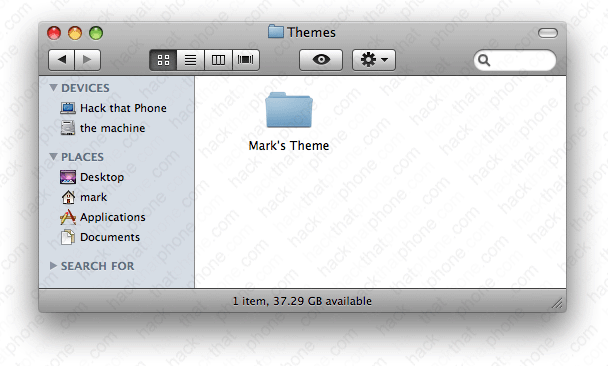
Inside your theme folder, create folders named Bundles and Icons. Place the graphic you would like to use as your wallpaper image in here as well. It must be called Wallpaper.png.
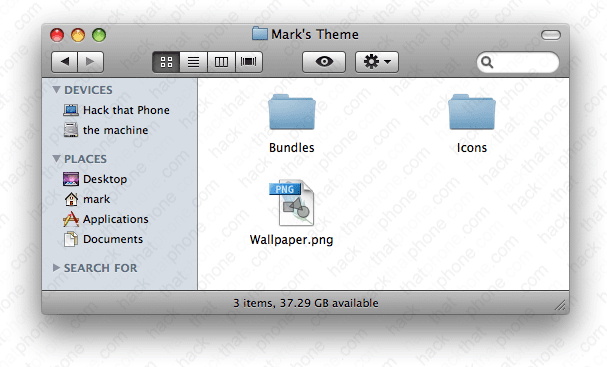
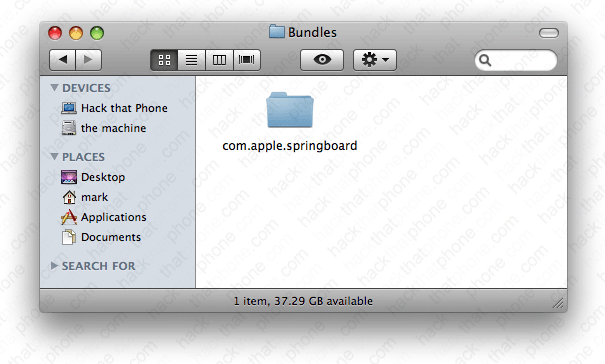
Inside your Bundles folder create a folder named com.apple.springboard
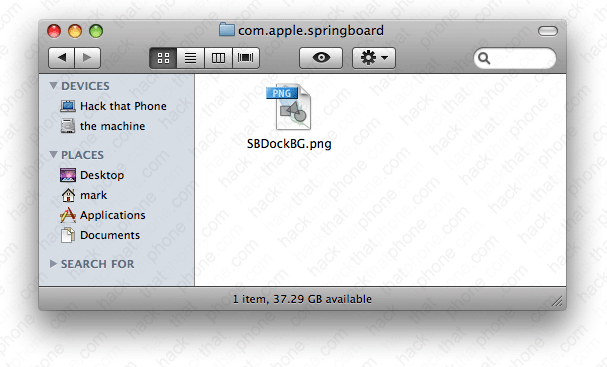
Inside your com.apple.springboard folder place your dock image here. It must be called SBDockBG.png.
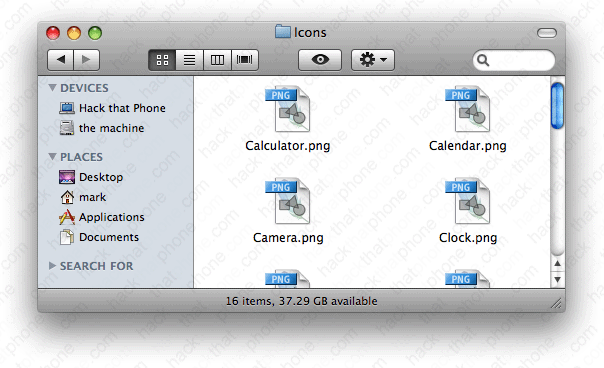
Now go to your Icons folder. Place all your applications icons in here. The icons must be named after the application's name.
Step 2.
Go to the Applications folder on your Mac, and launch the program TextEdit. Open a new file. Paste the following text into your file.Website: http://www.yoursite.com
Maintainer: You.
Name: Name of package.
Package: Bundle identifier.
Section: Where in Cydia it wil appear.
Version: Package version.
Architecture: iphoneos-arm
Description: Information about package.
Sponsor: You. (Make sure to press return after this line. There must be a blank line under this entry!)
My text looked like this after I edited it.
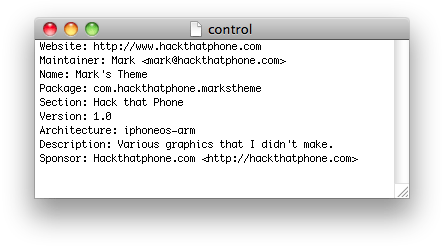
Click File, Save As... Name the file control and select Unicode (UTF-8) as the encoding method.

Place the control file in your MyProgram2/DEBIAN folder.

Step 3.
Launch DS_Store_Cleaner. Drag your MyProgram2 folder into the program.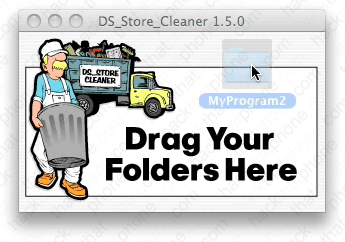
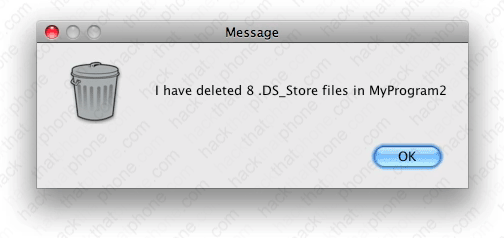
A message will appear confirming the deletion of the hidden .DS_Store files. Anytime you change the contents of your folders, these files are added. It is critical they be removed before generating the .deb file.
Step 4.
Launch the Terminal, and enter the following:cd /Users/your user name/Desktop
Press enter. Enter the following into the Terminal:
dpkg-deb -b MyProgram2
Press enter. There will be three warning messages about the user-defined fields website, name and sponsor. This is normal.
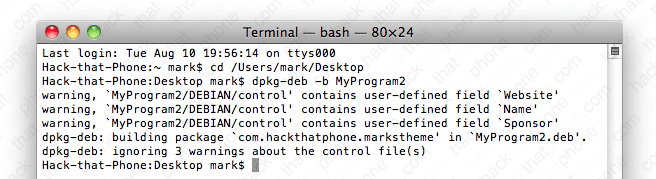
You will also see a file called MyProgram2.deb was created, and placed on your desktop.
Step 5.
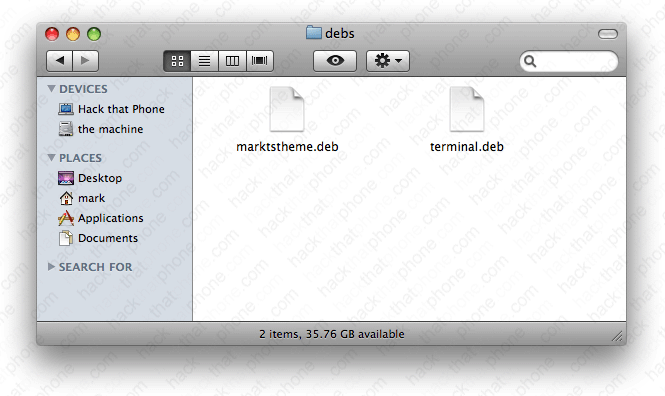
Place the MyProgram2.deb file into the debs folder which is inside of the cydiarepo folder.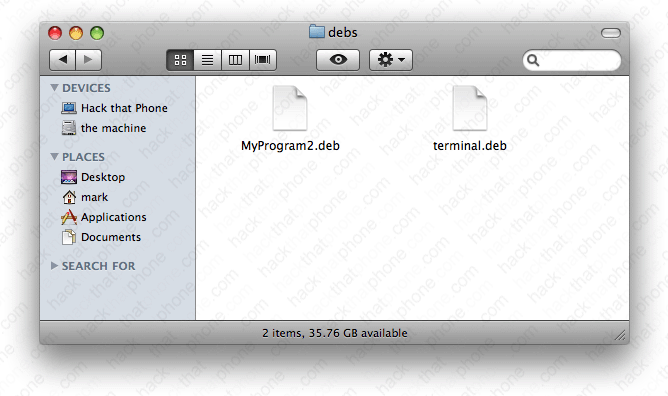
Rename the .deb file to whatever you want.