Jailbreaking & unlocking the iPhone 4 with limera1n
Page 2 of 2Step 4.
Turn the iPhone on. Make sure you have set up your Wi-Fi connection. Press the limera1n icon. Press the Cydia button. Note: If you don't see the limera1n icon try rebooting the iPhone, repeating the jailbreak process, or restoring to 4.1 with TinyUmbrella again. This is not a perfect jailbreak. I've had to restore a second time to make the icon appear myself.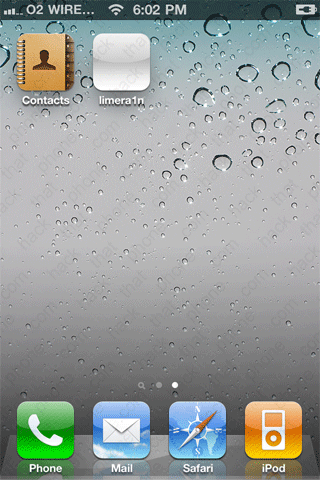
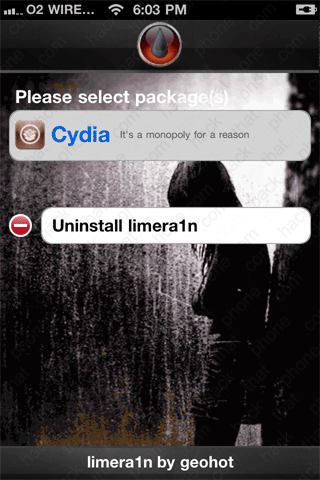
Press Install. It will then download and install Cydia. The iPhone will then respring.


Cydia appears next to the limera1n application. You can relaunch limera1n and delete it as it is no longer useful. Just press the round red button then the Delete button.
If you did not use an AT&T or MVNO SIM to activate with, then YouTube may not function until you install Pushfix from Cydia. Install the source cydia.pushfix.info They also have various YouTube fix files.


Step 5.
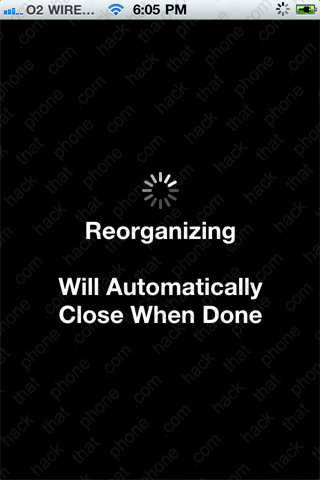
Launch Cydia. It may need time to regorganize. Just relaunch Cydia when it finishes.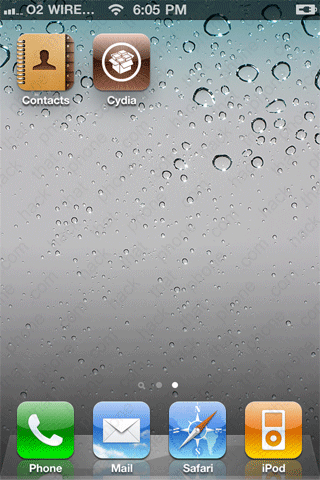
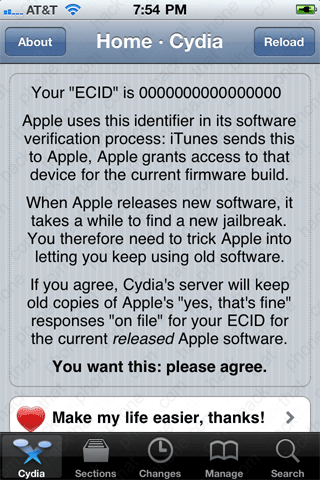
| If this is the first time your iPhone 4 has been jailbroken and Cydia launched, you will be greeted with this message. You want to press the button that says Make my life easier, thanks! This will enable Cydia to store your SHSH for your iPhone so that you can continue to restore to this firmware even when Apple won't sign the firmware any more. | |
|

|
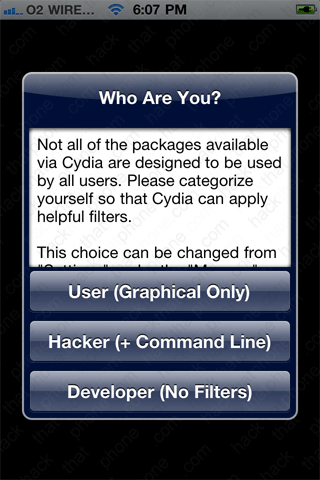
Then choose what level you would like Cydia to display its contents. This screen may appear next. You should always keep Cydia updated.
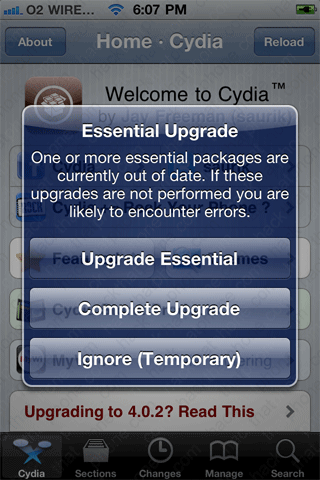
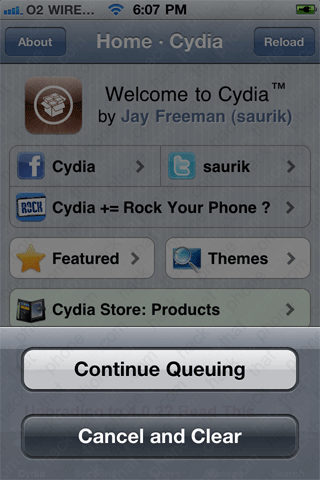
Press the Cancel / Queue button. Press the Continue Queueing button.

Press the Search button. Enter ultrasn, then press ultrasn0w in the results.

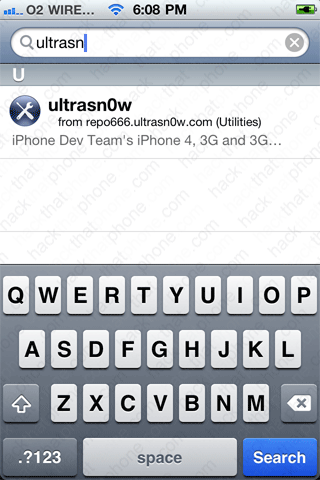
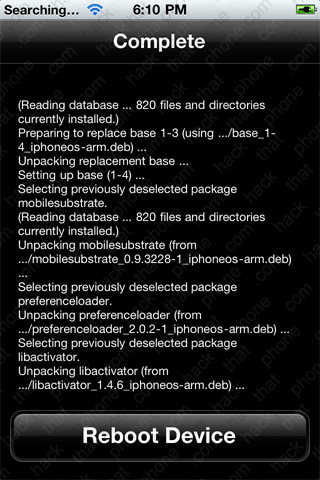
Press Install. I then pressed queue and installed SBSettings also as it's very helpful respringing and rebooting the iPhone in case there are any issues with ultrasn0w. This is up to you however. Press the Confirm button when you are ready to install all your queued programs.


Press the Reboot Device button.
Switch out your SIM card (if you haven't already).

| If you aren't sure how to cut your SIM card down to size you have a couple options. I use a SIM cutting tool. It takes a full size SIM and punches out the micro SIM from it. It makes such a clean cut that you can even put the micro SIM back into the full size SIM card and use it in a regular phone. Here's the place I bought it from: MicroSIMCutter.com. It took a month to arrive. After using you can see how much of the gold contact is left on the main card. I also have an O2 SIM that I cut which did not have any of the gold contact material left on the main card. My T-Mobile SIM is several years old. If you'd rather cut your SIM by hand you can try one of the printable templates from this site. |

|
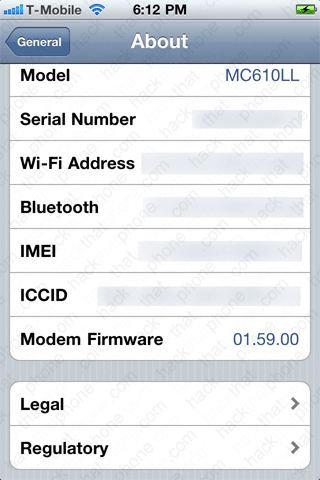
Here's my About screen with the T-Mobile SIM installed. Note: I always erase my serial number, Wi-Fi address, Bluetooth address, IMEI and ICCID. Your screen will have values here.

Step 5a.
You are at this step because the ultrasn0w repository is not being loaded by Cydia for some reason. This is usually temporary. If you absolutely can not wait, then perform this step to get ultrasn0w installed.If you don't already know how to use SSH, then you must read this tutorial first.
Download ultrasn0w 1.1-1 from me here. You should now have this file on your desktop.

Launch YummyFTP and navigate to your iPhone's /tmp folder. Place the ultrasn0w file you downloaded into this folder.

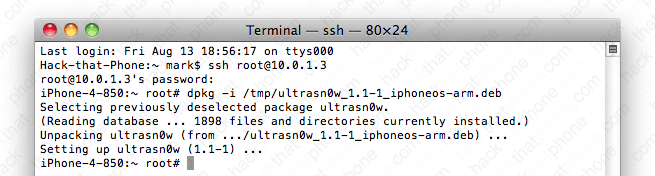
On your Mac, go to your Applications folder, then go to your Utilities folder and launch the Terminal.app. Enter the following command after you have logged into the iPhone.
dpkg -i /tmp/ultrasn0w_1.1-1_iphoneos-arm.deb
After about a minute your carrier name should appear and you should have a signal. If not, then reboot the iPhone.
If you launch Cydia and press Manage, then Packages you will see the ultrasn0w program in the list. You can of course remove the application through Cydia, and if there are any updates Cydia will alert you to this.
Using alternate SIM cards in the iPhone 4
If you want to learn how to use another cell phone provider's SIM in your iPhone and still be able to use data, FaceTime, MMS and tethering then check out this page.Restoring the iPhone back to stock configuration
If you want to remove all evidence of the jailbreak and the unlock, then simply restore your iPhone using iTunes. You must change your hosts file so that gs.apple.com is not redirected to the Cydia IP address, otherwise the restore will not function properly. If you used TinyUmbrella to change your hosts for you, click the Advanced button and uncheck the box that says "Set Hosts to Cydia on Exit".Keep in mind clicking update or restore may put you on newer firmware that can not be jailbroken or unlocked. You will also need an official SIM to activate the iPhone again.
Updating your iPhone to newer firmware
Once a new firmware has been released it takes time to craft a new jailbreak and a new unlock, or a work around for the unlock. Do not update your jailbroken/unlocked iPhone if you value its current state of operation. I will post a tutorial on how to get newer firmware installed when it is possible.You updated your iPhone anyway and want to go back
If you updated your iPhone and now realize your mistake and want to go back, you will be able to jailbreak provided your saved your SHSH for the firmware you wish to restore to. Read this tutorial to learn more. If you do have the SHSH for the firmware you want to go back to then read this tutorial to see how I downgraded my iPhone 4.Keep in mind, if the new firmware you installed on your iPhone also came with new modem firmware, then you have lost your ability to unlock, possibly forever.
