Make and use themes with WinterBoard
Section 19: Changing status bar images (carrier bars, Wi-Fi bars, GPRS, EDGE, 3G, battery), and more!
Updated: September 1, 2010
Attention
If you have not read the two prerequisite tutorials: Using YummyFTP and OpenSSH to create themes, and Understanding a theme's directory structure, then you should prior to performing any of the instructions in the following tutorial.I am updating all WinterBoard tutorials to reflect the differences in creating graphics for the iPhone 4, and iPhone 3G / 3G S. It's important you pay attention to file names (they are different, the iPhone 4 uses an @2x designator just before the .png extension, and dimensions (iPhone 4 graphics are generally double in size from their iPhone 3G / 3G S counterparts). When creating iPhone 4 graphics you should refer to the original graphic on the iPhone 4 or in its firmware file to verify your image is the correct size.
I don't have the ability to show you how to theme everything on the iPhone. This series of tutorials was only meant to demonstrate the basics of theming and point out where some of the key graphics were in the iPhone file system, so that you could easily make some dramatic changes to the appearance of your iPhone. Should you want to do any serious theming of your iPhone, then decrypting the shared.artwork file is the key. I'm going to incorporate many tutorials into this one as so many different system graphics are in this one file, and it's basically the same process to change many of the graphics within it. I'll show you how to change the carrier signal strength bars, and then point out some other key graphics.
WinterBoard has not been updated with the ability to replace many system graphics on the iPhone 4. You can cheat by using iPhone 3G / 3G S graphics and placing them into Your Theme/UIImages/ to make the iPhone 4 load them. This is not the ideal method of doing this as graphic quality could suffer. When using this method do not add the @2x designator to any files you intend to theme on the iPhone 4.
Step 1.
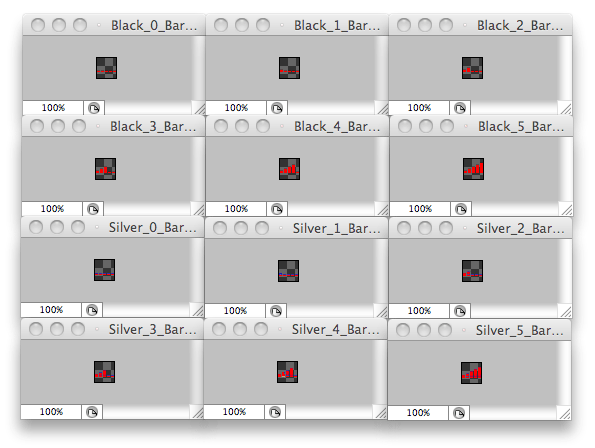
To replace the carrier signal bar graphics you need to switch out the following graphics. Note: These images are from 4.0 firmware and are not the taller graphics introduced in 4.0.2 firmware. I do not have a decrypt key for 4.0.2 firmware so I can not provide the newer graphic. Since these graphics are packed in a file format I can't decrypt, I can't get them directly from the iPhone either.| Black_0_Bars.png |
| Black_1_Bars.png |
| Black_2_Bars.png |
| Black_3_Bars.png |
| Black_4_Bars.png |
| Black_5_Bars.png |
| Silver_0_Bars.png |
| Silver_1_Bars.png |
| Silver_2_Bars.png |
| Silver_3_Bars.png |
| Silver_4_Bars.png |
| Silver_5_Bars.png |
Some of the images look good on a black bar, some on a silver bar. You could of course use one color for all of them. All of these images are 19 pixels in width and 20 pixels in height. Those are the actual graphics above, so you could place them on your phone if you needed to and they would work. Below are my 12 new images. Don't forget to save them!
Step 2.
Create the folders: Red carrier bars/UIImages UIImages has two capital letter "eyes", those are not Ls. Place all of your images into UIImages. Note: All graphics you change from the Shared.artwork file will go into this same path.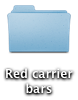
Place your new theme into your iPhone's Themes folder.

Step 3.
Launch Settings, go into WinterBoard and try out your new theme.

Other graphics
Here are the Wi-Fi signal bars.
| Black_0_WifiBars.png |
| Black_1_WifiBars.png |
| Black_2_WifiBars.png |
| Black_3_WifiBars.png |
| Silver_0_WifiBars.png |
| Silver_1_WifiBars.png |
| Silver_2_WifiBars.png |
| Silver_3_WifiBars.png |
Here are the small battery charge level indicators.
| Black_BatteryCharged.png |
| Black_BatteryCharging.png |
| Black_BatteryDrainingBG.png |
| Black_BatteryDrainingInsides.png |
| Black_BatteryDrainingInsidesLow.png |
| Silver_BatteryCharged.png |
| Silver_BatteryCharging.png |
| Silver_BatteryDrainingBG.png |
| Silver_BatteryDrainingInsides.png |
| Silver_BatteryDrainingInsidesLow.png |
Here are the various data type indicators (EDGE, GPRS, 3G).
| Black_DataTypeEDGE.png |
| Black_DataTypeGPRS.png |
| Black_DataTypeUMTS.png |
| Silver_DataTypeEDGE.png |
| Silver_DataTypeGPRS.png |
| Silver_DataTypeUMTS.png |
Here are the last couple graphics I'll demonstrate. These are pop up backgrounds that appear when you miss a call, and for other generic messages the iPhone provides.


Here's how you change these pop up backgrounds...
| UIPopupAlertSheetBackground.png |
| UIPopupAlertSheetButton.png |
| UIPopupAlertSheetButtonPress.png |
| UIPopupAlertSheetDefaultButton.png |
