Make and use themes with WinterBoard
Section 20: Removing the shadows & overlays from icons
Updated: July 14, 2011
Attention
If you have not read the two prerequisite tutorials: Using YummyFTP and OpenSSH to create themes, and Understanding a theme's directory structure, then you should prior to performing any of the instructions in the following tutorial.I am updating all WinterBoard tutorials to reflect the differences in creating graphics for the iPhone 4, and iPhone 3G / 3G S. It's important you pay attention to file names (they are different, the iPhone 4 uses an @2x designator just before the .png extension, and dimensions (iPhone 4 graphics are generally double in size from their iPhone 3G / 3G S counterparts). When creating iPhone 4 graphics you should refer to the original graphic on the iPhone 4 or in its firmware file to verify your image is the correct size.
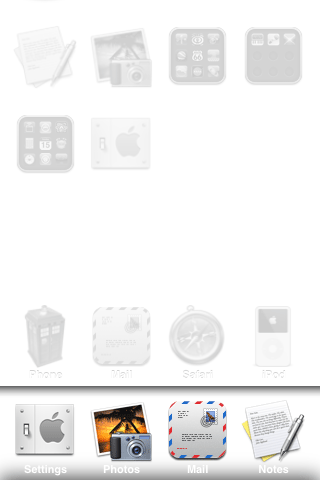
iOS4 added many graphics to make the iPhone appear even more eye catching. For those of us who like to customize our iPhones, some of these enhancements can be annoying. I'm talking about the shadows they added to the icons on the SpringBoard, and in the multitask bar. I use many non standard icons and they look horrible with the standard shadow applied to them. I'll show you what I mean. I'm using a white background so you can better see the shadows, and the dock reflection that I showed you how to remove in Section 1.
The shadows don't look too bad on the icons that aren't in the dock, but I still don't care for them. The shadows in the dock look awful. On the right I have the multitask bar open and you can see the shadows have problems there as well. This can be solved several ways. I'm going to eliminate the shadows completely.


Step 1.
I've already removed the dock reflection by replacing the SBDockBG@2x.png (for iPhone 4) or SBDockBG.png (for the iPhone 3G / 3G S) file with a transparent graphic.. I covered this in Section 2: Creating a basic theme.Create the folders NoReflectionOrShadow/Bundles/com.apple.springboard I placed the clear dock file in this folder.
To eliminate the reflection on the icons, you need a file called SBDockMask@2x.png (for the iPhone 4) which is 118 by 120 in size, or SBDockMask.png (for the iPhone 3G / 3G S) which is 59 by 60 in size.
Place this theme into your iPhone's Themes folder.

Launch Settings, go to WinterBoard, press Select Themes and select your theme and press the home button.


After the iPhone resprings you'll see the dock reflection is gone.

Step 2.
Let's look at those wallpaper icon shadows next. The files that must be modified are WallpaperIconShadow@2x.png (for the iPhone 4) which is 206 by 206, and WallpaperIconShadow.png (for the iPhone 3G / 3G S) which is 103 by 103, and WallpaperIconShadowT.png (for the iPhone 3G / 3G S) which is 130 by 130.Note: Starting with 4.2.1 firmware these graphics have been renamed.
- WallpaperIconShadow.png becomes WallpaperIconShadow~iphone.png
- WallpaperIconShadow@2x.png becomes WallpaperIconShadow@2x~iphone.png
Next let's get rid of the dock icon shadows. The files that must be modified are WallpaperIconDockShadow@2x.png (for the iPhone 4) which is 118 by 120, WallpaperIconDockShadow.png (for the iPhone 3G / 3G S) which is 59 by 60, and WallpaperIconDockShadowT.png (for the iPhone 3G / 3G S) which is 74 by 76.
Note: Starting with 4.2.1 firmware these graphics have been renamed.
- WallpaperIconDockShadow.png becomes WallpaperIconDockShadow~iphone.png
- WallpaperIconDockShadow@2x.png becomes WallpaperIconDockShadow@2x~iphone.png
The final graphic is the shadow found in the multitask bar. It is called SwitcherIconShadow@2x.png (for the iPhone 4) which is 118 by 120, and SwitcherIconShadow.png (for the iPhone 3G / 3G S) which is 59 by 60.
Note: Starting with 4.2.1 firmware these graphics have been renamed.
- SwitcherIconShadow.png becomes SwitcherIconShadow~iphone.png
- SwitcherIconShadow@2x.png becomes SwitcherIconShadow@2x~iphone.png
Customize these graphics however you like, and place them all into the com.apple.springboard folder. Then upload the NoReflectionOrShadow folder to your iPhone's Themes folder like you did in Step 1. Then launch Settings, go to WinterBoard, deselect the NoReflectionOrShadow theme, and then select it again and press the home button. The iPhone will respring. Look at that, the shadows are gone.

Step 3.
When you press an icon on the screen it gets darker to indicate its selection.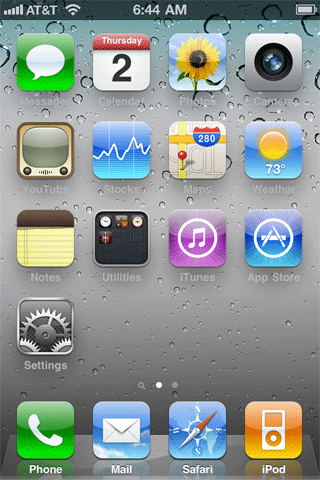

The graphics responsible for this are IconDarkeningOverlay@2x.png (on the iPhone 4), which is 118 by 124, and IconDarkeningOverlay.png (on the iPhone 3G / 3G S), and is 59 by 62. Here's what they look like. You can place these graphics into the folders you created earlier: NoReflectionOrShadow/Bundles/com.apple.springboard
Starting with 4.2.1 and 4.2.6 firmware this effect is executed differently. It seems the best way to eliminate this overlay shadow is to go to /System/Library/PrivateFrameworks/MobileIcons.framework and then rename or delete the files AppIconMask.png and AppIconMask@2x.png. You can read more on the struggle to theme with this effect here.
