Make and use themes with WinterBoard
Section 6: Changing the folder icon and background graphics
Updated: January 15, 2011
Attention
If you have not read the two prerequisite tutorials: Using YummyFTP and OpenSSH to create themes, and Understanding a theme's directory structure, then you should prior to performing any of the instructions in the following tutorial.I am updating all WinterBoard tutorials to reflect the differences in creating graphics for the iPhone 4, and iPhone 3G / 3G S. It's important you pay attention to file names (they are different, the iPhone 4 uses an @2x designator just before the .png extension, and dimensions (iPhone 4 graphics are generally double in size from their iPhone 3G / 3G S counterparts). When creating iPhone 4 graphics you should refer to the original graphic on the iPhone 4 or in its firmware file to verify your image is the correct size.
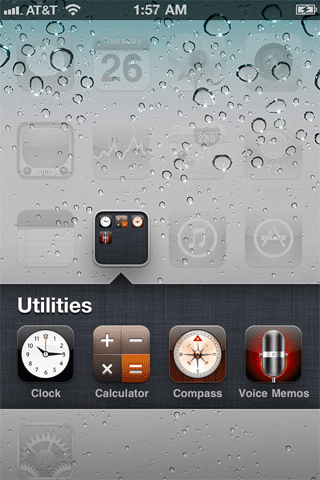
iOS4 introduced the ability to make a folder. This folder has a special icon, and you can change the background image for it. When you press the icon to open the folder, it displays that same background image, just at a larger scale. You can also change that graphic. It's a very dark pattern so it may be hard to see. You can place any image you want here.
Jackie Tran created some nice OS X dashboard style graphics to replace the stock images. You can download these graphics from the MacThemes.net forum thread here. Make sure to look through the entire thread as he continues to add new alternate graphics. Here are a few examples:


Step 1.
Create the folders: Folder graphics/Bundles/com.apple.springboard
The icon background must be 118 by 124 for the iPhone 4, 59 by 62 for the iPhone 3G / 3G S. This graphic is called FolderIconBG@2x.png, or FolderIconBG.png. The folder background must be 640 by 960 for the iPhone 4, 320 by 480 for the iPhone 3G / 3G S. This graphic is called FolderSwitcherBG@2x.png, or FolderSwitcherBG.png.
Note: Starting with 4.2.1 firmware these graphics have been renamed.
- FolderIconBG.png becomes FolderIconBG~iphone.png
- FolderIconBG@2x.png becomes FolderIconBG@2x~iphone.png
- FolderSwitcherBG.png becomes FolderSwitcherBG~iphone.png
- FolderSwitcherBG@2x.png becomes FolderSwitcherBG@2x~iphone.png
- com.apple.SpringBoard.folderSwitcherLinen.0
- com.apple.SpringBoard.folderSwitcherLinen.1
- com.apple.SpringBoard.folderSwitcherLinen.2
- com.apple.SpringBoard.folderSwitcherLinen.3
Place your alternate folder graphics inside the com.apple.springboard folder.
Step 2.
Place this folder in your iPhone's Themes folder.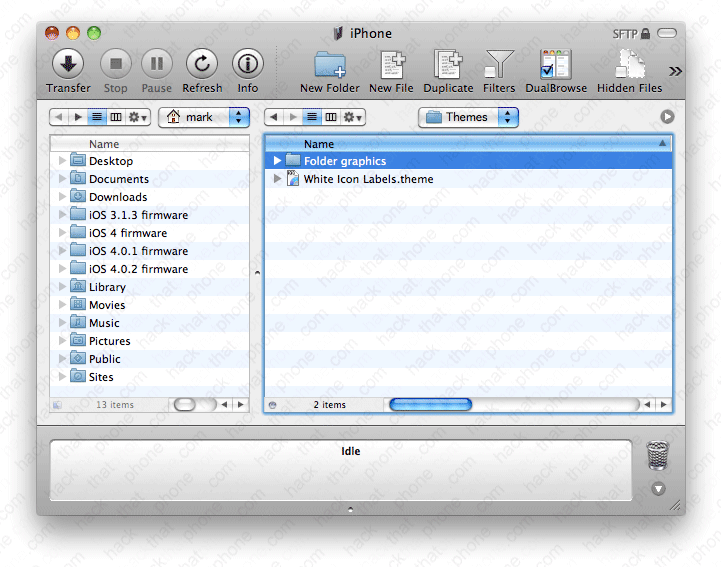
Step 3.
Launch Settings, and go into the WinterBoard menu and select the Folder graphics theme.
Here's my before and after.