Make and use themes with WinterBoard
Section 7: Changing sliders (with custom text and audio)
Updated: June 21, 2011
Attention
If you have not read the two prerequisite tutorials: Using YummyFTP and OpenSSH to create themes, and Understanding a theme's directory structure, then you should prior to performing any of the instructions in the following tutorial.I am updating all WinterBoard tutorials to reflect the differences in creating graphics for the iPhone 4, and iPhone 3G / 3G S. It's important you pay attention to file names (they are different, the iPhone 4 uses an @2x designator just before the .png extension, and dimensions (iPhone 4 graphics are generally double in size from their iPhone 3G / 3G S counterparts). When creating iPhone 4 graphics you should refer to the original graphic on the iPhone 4 or in its firmware file to verify your image is the correct size.
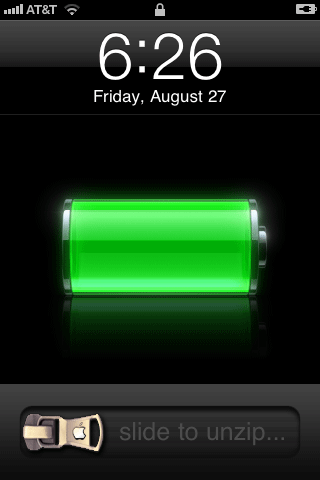
This all started some time ago when a theme called iZipper sliders came out. Currently that theme only changes the unlock and lock sound. I don't remember where the graphics from my tutorial came from but they further enhance the whole zipper theme. This theme will replace the slide to unlock, slide to power off, and the slide to answer buttons. It will also change the text from slide to unlock to slide to unzip. It will also change the graphic that the text sits above. I'm also changing the zipper sound.
I'm going to demonstrate two different themes: one for the iPhone 3G / 3G S, and one for the iPhone 4.
Update As of 4.3.3 firmware Apple has changed some things, again.
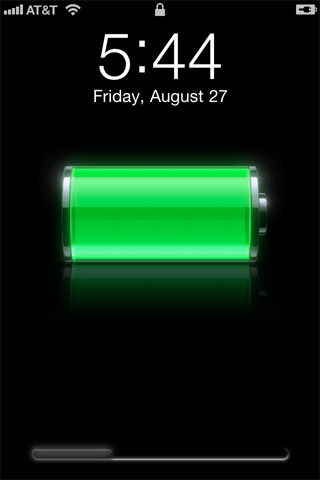
If you want to get rid of that tall shaded bar at the bottom of the screen, you need to change the files BarBottomLock.png (1 pixel x 96 pixels) and BarBottomLock@2x.png (1 pixel x 192 pixels). If you don't change both, the iPhone 4 will use the normal sized graphic in lieu of the @2x one.
To get rid of the smaller darker bar (the tray that the slider knob travels within) you need to change the files WellLock.png (27 pixels x 52 pixels) and WellLock@2x.png (54 pixels x 104 pixels). If you don't change both, the iPhone 4 will use the normal sized graphic in lieu of the @2x one. This file used to be called bottombarbkgndlock.png or bottombarbkgndlock@2x.png.
iPhone 3G / 3G S - Step 1.
This theme consists of five images: bottombarbkgndlock.png (79 by 96), bottombarlocktextmask.png (80 by 32), bottombarknobgreen.png (71 by 47), bottombarknobred.png (70 by 47), bottombarknobgray.png (71 by 47).These are the images.

I'm going to provide the theme folder with all the customized elements in it to start off. Then I'll go over how this theme is customized. To download this theme, click here. Decompress this file and you'll be left with a folder.

Open the folder, and look at the first folder inside it. Bundles/com.apple.springboard/en.lproj/SpringBoard.strings To edit this file I like to use a program called BBEdit. You can get a trial version of this program for free here.
Open the file. There is only one line it it. Change the text in red (that I have highlighted in blue), to whatever you'd like. Keep in mind you can only fit so many characters in this space. Keep your text between the quotes. Save the file when you are done!

The next folder is Folders/TelephonyUI.framework, and all the graphics go in here. The slider buttons have been replaced with zipper pull tab graphics, and the text mask with the highlight on it has been made transparent. You'll notice the zipper pull tab graphics are a bit longer than the standard sliders. You do have some room to play with, but keep in mind it will impact how much space there is for text to display and be readable.
The next folder is UISounds and has one file in it, the unlock.caf. You could also change the lock.caf if you wanted to, or any other sound by using this folder.
iPhone 3G / 3G S - Step 2.
Once you have your theme customized the way you want it, place the folder into your iPhone's Themes folder.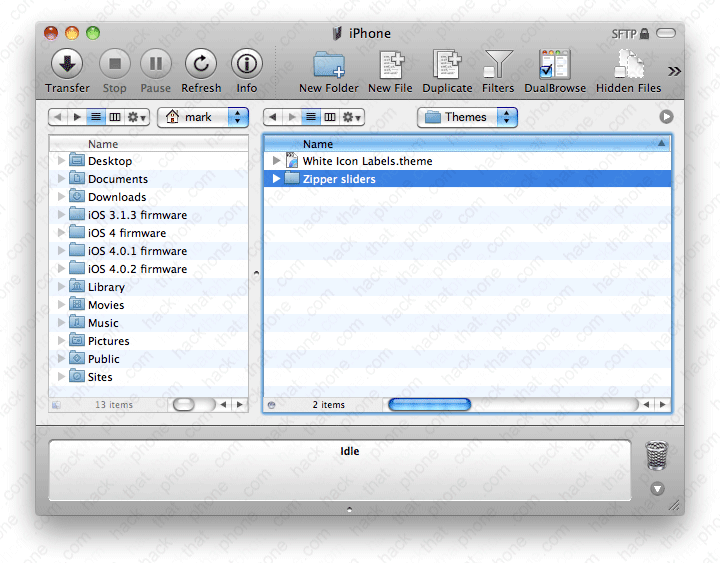
iPhone 3G / 3G S - Step 3.
Launch the Settings application and go into WinterBoard and try out your new theme.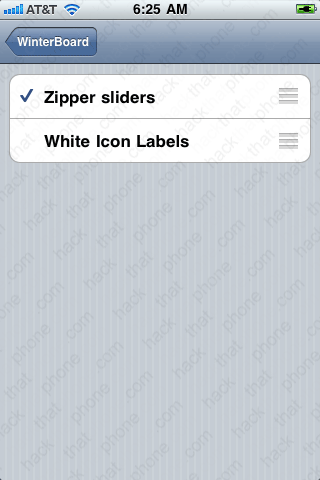
Additional information
There's nothing saying that the slide to unlock slider, has to slide. There is a theme on Cydia called Tap To Unlock Sliders, which as the name suggests, allows you to tap a button to answer a call, to power down, or to begin using your iPhone, without having to slide a button. The only difference is you only put the three buttons into the TelephonyUI.framework folder. There is no bottombarbkgndlock.png image. If you should use the graphics below, keep in mind you need to edit the SpringBoard.strings file and remove the text for all three conditions in which you would tap. I would just install the theme from Cydia as I won't cover further editing the .strings file.This is the bottombarknobgray.png graphic:

This is the bottombarknobgreen.png graphic:

This is the bottombarknobred.png graphic:

iPhone 4 - Step 1.
I'm not sure where I found the sliders I'll be using next. They are similar to the Gruppled theme sliders from my tutorial in the 3.x firmware section. The download I'm providing will give you sliders for unlocking, answering and powering down the iPhone. There are even a couple alternate colors. There is also a SpringBoard.strings file which erases all the text messages that would normally appear where the button is. I have also included a sound file to replace the standard unlock sound. You can download my Thin Sliders theme here. To learn more about customizing the SpringBoard.strings file, read above. If you don't like the custom audio file in this theme (it's a zipper sound), just delete the file from the UISounds folder.The graphics included in this file are BarLCD@2x.png (59 by 60), bottombarbkgndlock@2x.png (158 by 192), bottombarknobgray_pressed@2x.png (200 by 118), bottombarknobgray@2x.png (142 by 94 - there are two alternate graphics for this button), bottombarknobgreen@2x.png (142 by 94), bottombarknobred@2x.png (140 by 94), topbarbkgnd@2x.png (158 by 92).
iPhone 4 - Step 2.
Once you have your theme customized the way you want it, place the folder into your iPhone's Themes folder.
iPhone 4 - Step 3.
Launch the Settings application and go into WinterBoard and try out your new theme.
Additional information
There's nothing saying that the slide to unlock slider, has to slide. There is a theme on Cydia called Tap To Unlock (iPhone 4), which as the name suggests, allows you to tap a button to answer a call, to power down, or to begin using your iPhone, without having to slide a button. The only difference is you only put the three buttons into the TelephonyUI.framework folder. There is no bottombarbkgndlock@2x.png image. If you should use the graphics below, keep in mind you need to edit the SpringBoard.strings file and remove the text for all three conditions in which you would tap. I would just install the theme from Cydia as I won't cover further editing the .strings file.This is the bottombarknobgray@2x.png graphic:

This is the bottombarknobgreen@2x.png graphic:

This is the bottombarknobred@2x.png graphic:

