Make and use themes with WinterBoard
Section 9: Changing system sounds
Updated: August 27, 2010
Attention
If you have not read the two prerequisite tutorials: Using YummyFTP and OpenSSH to create themes, and Understanding a theme's directory structure, then you should prior to performing any of the instructions in the following tutorial.If you read Section 7: Changing sliders (with custom text and audio), you saw how I changed the sound associated with sliding to unlock the iPhone. I applied this sound using a theme, by placing the new sound file into the UISounds folder of the theme. I am going to repeat part of that lesson and also provide you with the names of all the sound files on the iPhone so you can swap them all out, should you wish.
These are the audio files in the /System/Library/Audio/UISounds folder on 4.0 firmware:
|
alarm.caf
beep-beep.caf - sound played when docking the iPhone. begin_record.caf - sound played when starting an audio recording begin_video_record.caf - sound played when starting a video recording ct-busy.caf ct-call-waiting.caf ct-congestion.caf ct-error.caf ct-keytone2.caf ct-path-ack.caf dtmf-0.caf - sound played when pressing 0 on the phone keypad. dtmf-1.caf - sound played when pressing 1 on the phone keypad. dtmf-2.caf - sound played when pressing 2 on the phone keypad. dtmf-3.caf - sound played when pressing 3 on the phone keypad. dtmf-4.caf - sound played when pressing 4 on the phone keypad. dtmf-5.caf - sound played when pressing 5 on the phone keypad. dtmf-6.caf - sound played when pressing 6 on the phone keypad. dtmf-7.caf - sound played when pressing 7 on the phone keypad. dtmf-8.caf - sound played when pressing 8 on the phone keypad. dtmf-9.caf - sound played when pressing 9 on the phone keypad. dtmf-pound.caf - sound played when pressing # on the phone keypad. dtmf-star.caf - sound played when pressing * on the phone keypad. end_record.caf - sound played when ending an audio recording end_video_record.caf - sound played when ending a video recording jbl_ambiguous.caf jbl_begin.caf jbl_cancel.caf jbl_confirm.caf jbl_no_match.caf lock.caf - is the sound played when pressing the Sleep/Wake button. long_low_short_high.caf low_power.caf mail-sent.caf - is the sound played when sending an email. middle_9_short_double_low.caf new-mail.caf - is the sound played when an email is received. photoShutter.caf - is the sound played when taking a picture. ReceivedMessage.caf RingerChanged.caf SentMessage.caf shake.caf short_double_high.caf short_double_low.caf short_low_high.caf SIMToolkitCallDropped.caf SIMToolkitGeneralBeep.caf SIMToolkitNegativeACK.caf SIMToolkitPositiveACK.caf SIMToolkitSMS.caf sms-received1.caf - is the sound called Tri-tone, for text message receipt. sms-received2.caf - is the sound called Chime, for text message receipt. sms-received3.caf - is the sound called Glass, for text message receipt. sms-received4.caf - is the sound called Horn, for text message receipt. sms-received5.caf - is the sound called Bell, for text message receipt. sms-received6.caf - is the sound called Electronic, for text message receipt. sq_alarm.caf sq_beep-beep.caf sq_lock.caf sq_tock.caf Tink.caf Tock.caf unlock.caf - is the sound played when you "slide to unlock". ussd.caf Voicemail.caf - is the sound played when you receive a voicemail message. |
I recommend downloading all the files in this folder to your Mac, and listening to how they sound in a Finder window before you decide to theme them with WinterBoard.

As far as ringtones are concerned, /private/var/stash/Ringtones contains the stock ringtones only. Custom ringtone sounds are placed in /private/var/mobile/Media/iTunes_Control/Ringtones. You can put your custom ringtones in the same folder as the stock ones, however.
Step 1.
Create a folder for your new audio theme: Custom lock sound/UISounds Place your new lock.caf file inside. You can place as many audio files as you'd like in this folder, you don't need a different theme for each sound you want to replace.
Place the Custom lock sound folder to your iPhone's Themes folder.
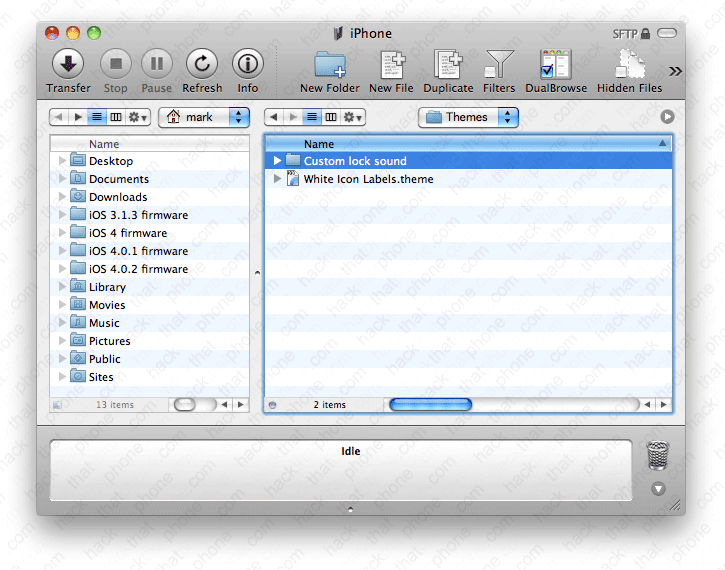
Launch the Settings application and go into WinterBoard and select your new theme.

To learn how to create custom sounds from sound files on your computer and convert them into the .caf format needed by the iPhone, read my Custom ringtones and system sounds tutorial (page 2) here. Go about halfway down this page.
